Create product cutouts ready for a layout
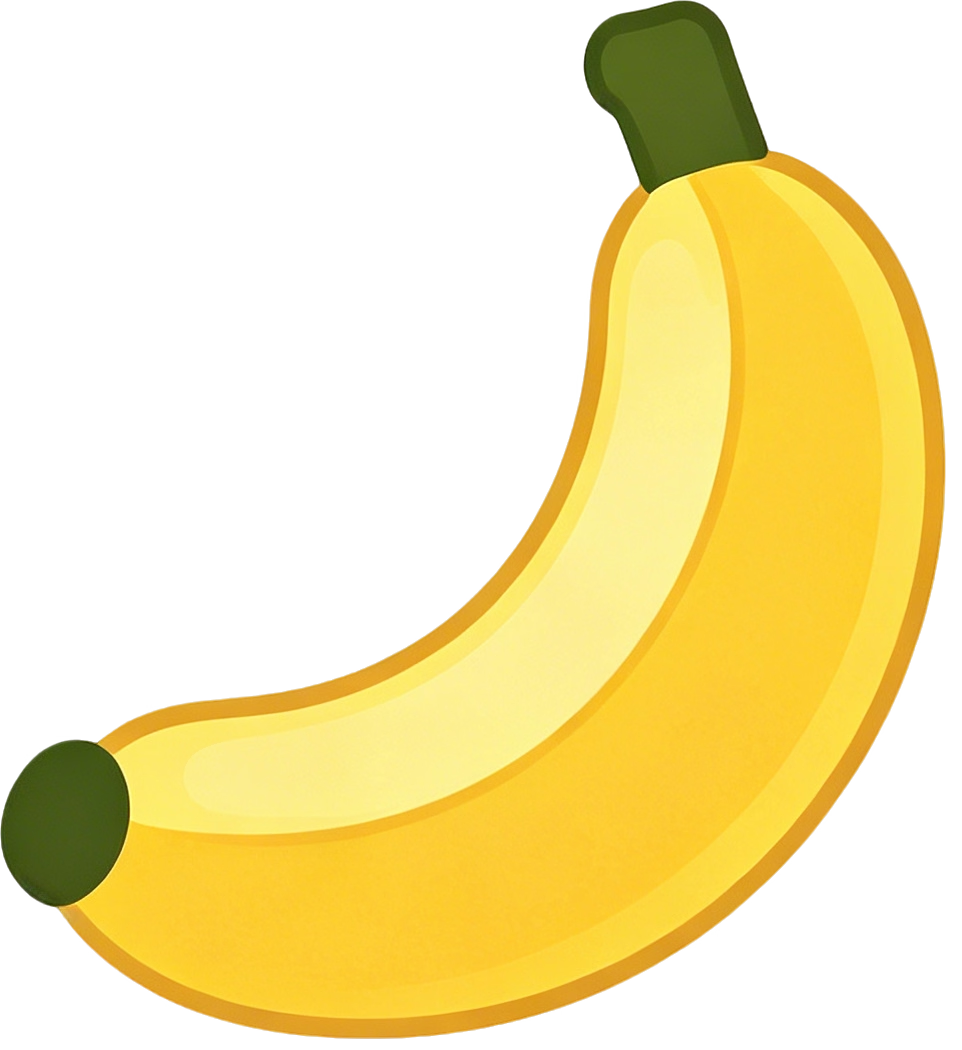
Generate an RGBA product, mascot, sticker, or graphic element on a real transparent background. Keep the prompt focused on the subject and export PNG or WebP when you need alpha.
Make transparent assets from text, combine up to 10 reference images, or change one selected part of an image without rebuilding the whole composition.
Qwen Image 2.1 combines image generation, transparent output, multi-reference composition, and local edits in one image workflow. Each result is a creative candidate: inspect important details before using it.
Generate a native RGBA image from a text prompt, or work with transparent layers during editing. Choose PNG or WebP for an alpha channel, and describe the subject without adding a scene or surface when transparency matters.
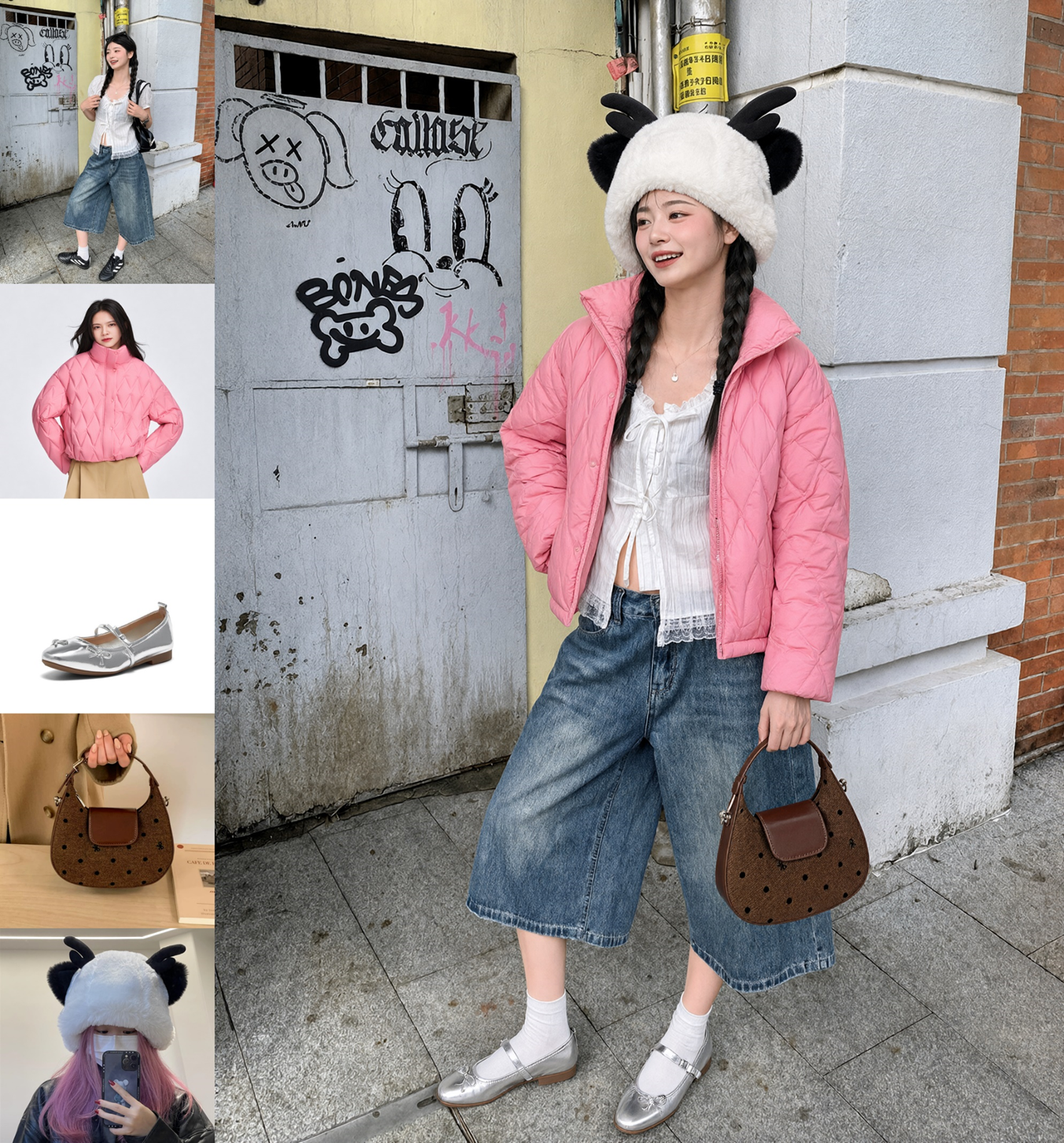
Use one to 10 reference images and name the role of each one in your prompt. This is useful when a composition needs several distinct people, objects, garments, or product cues. Use fewer, focused references when retaining detail matters most.
For a local edit, add one reference image and a black-and-white mask. White marks what should change; black marks what should remain. Use it for a packaging color, a garment, a small product area, or another focused revision.
Qwen Image 2.1 is optimized for refined typography, portrait lighting, realistic textures, and fine visual detail. State the material, lighting, wording, and small details you need, then zoom in and review every important word, face, logo, and product feature.
Available in this generator
Choose the input, framing, resolution, background, and output format that match the job in front of you.
Generated images can contain errors. Review important text, product details, faces, logos, facts, and rights before publishing or distributing a result.
Swipe horizontally to view the full table.
| Control | Qwen Image 2.1 |
|---|---|
Start with | A text prompt, or one to 10 reference images with an editing instruction Available |
Reference-aware output | Use reference order in the prompt; use four or fewer focused references when detail retention matters Available |
Local edit | Optional black-and-white mask with exactly one reference image; white changes and black is preserved Available |
Resolution | 1K for faster generation or 2K for more pixels; 4K is not available Available |
Framing | 1:1, 4:3, 3:4, 3:2, 2:3, 16:9, 9:16, 21:9, or 9:21; image-to-image also offers auto framing Available |
Transparency and export | Opaque or transparent background; use PNG or WebP for a transparent alpha channel, not JPEG Available |
Prompt control | Optional prompt enhancement and a seed for controlled iteration within the same service version Available |
Use the model where the input or output format is part of the creative requirement, not just a decorative image request.

Generate an RGBA product, mascot, sticker, or graphic element on a real transparent background. Keep the prompt focused on the subject and export PNG or WebP when you need alpha.

Assign each reference a clear role: a person, garment, product, prop, composition, or palette. A single image can bring those ingredients together without rewriting every detail from scratch.

Mask the exact area that needs work and describe only what belongs inside the white area. Keep the rest of a product shot, portrait, or composition as the reference for the edit.

Create posters, packaging concepts, editorial scenes, or copy-led visuals with an explicit wording and material brief. Treat generated text as a candidate and verify it at the size where people will read it.
Choose the simplest setup that communicates what must appear, what must stay, and what should change.
Describe the subject, composition, material, light, and exact wording. Use prompt enhancement when you want a short idea expanded, or turn it off to keep your own wording.
Upload the people, product, garment, or visual cues that should guide the result. Name what each reference contributes instead of leaving its role implied.
Pair one image with a black-and-white mask. Describe the replacement inside the white area, then inspect the preserved edges and the edited detail.
Write a detailed brief, add the references that matter, or mask the one area that needs a revision. Generate the result, then inspect what people will actually see.
Learn what this image generator and editor can do in this site, and what to check before using a generated result.