AI Smart Resize
Upload an image and generate new aspect ratios while preserving the style and main subject.
Resize your image
Choose a target ratio and let AI reframe the image naturally.
Resized image
See how one idea adapts to different formats.
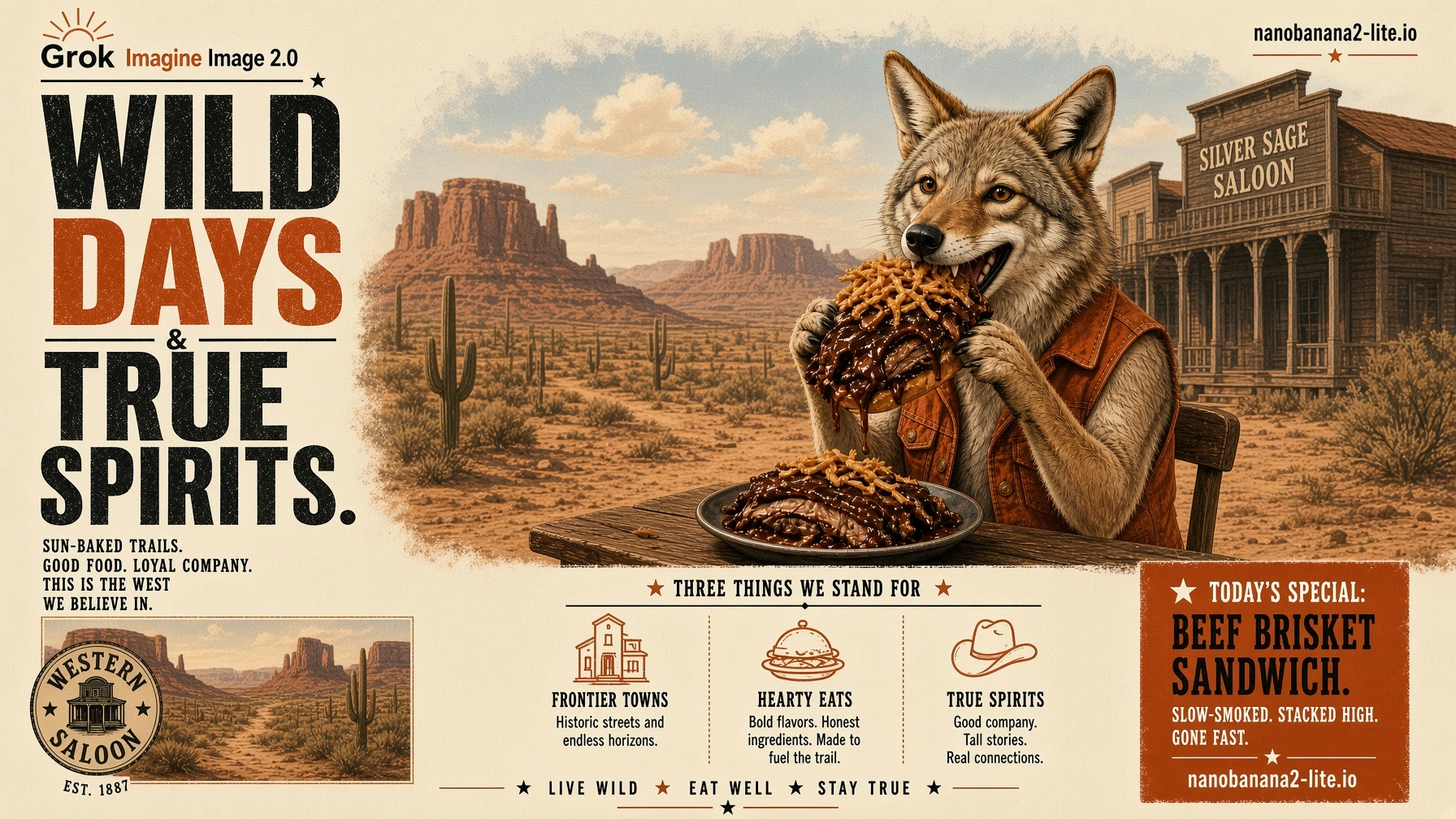
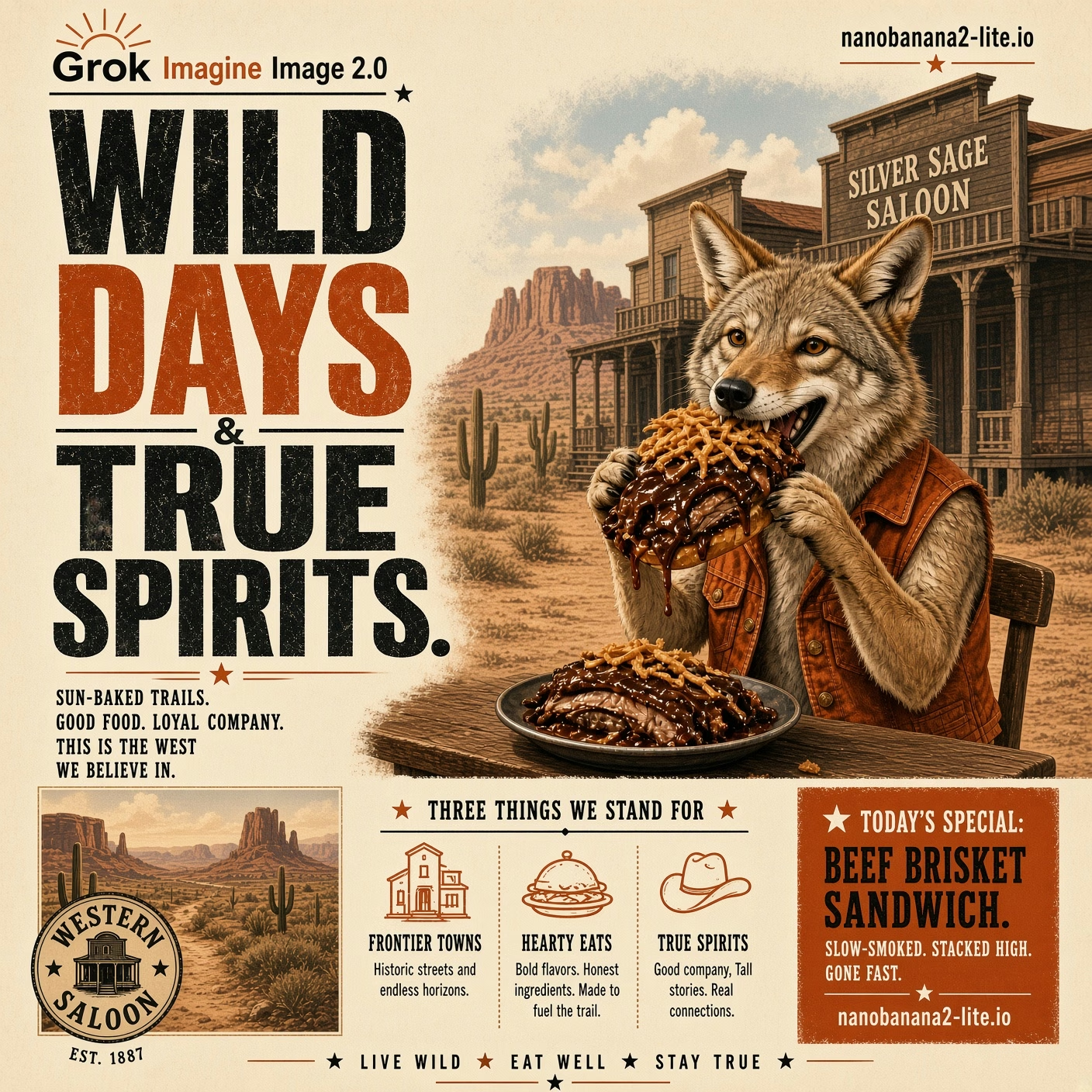
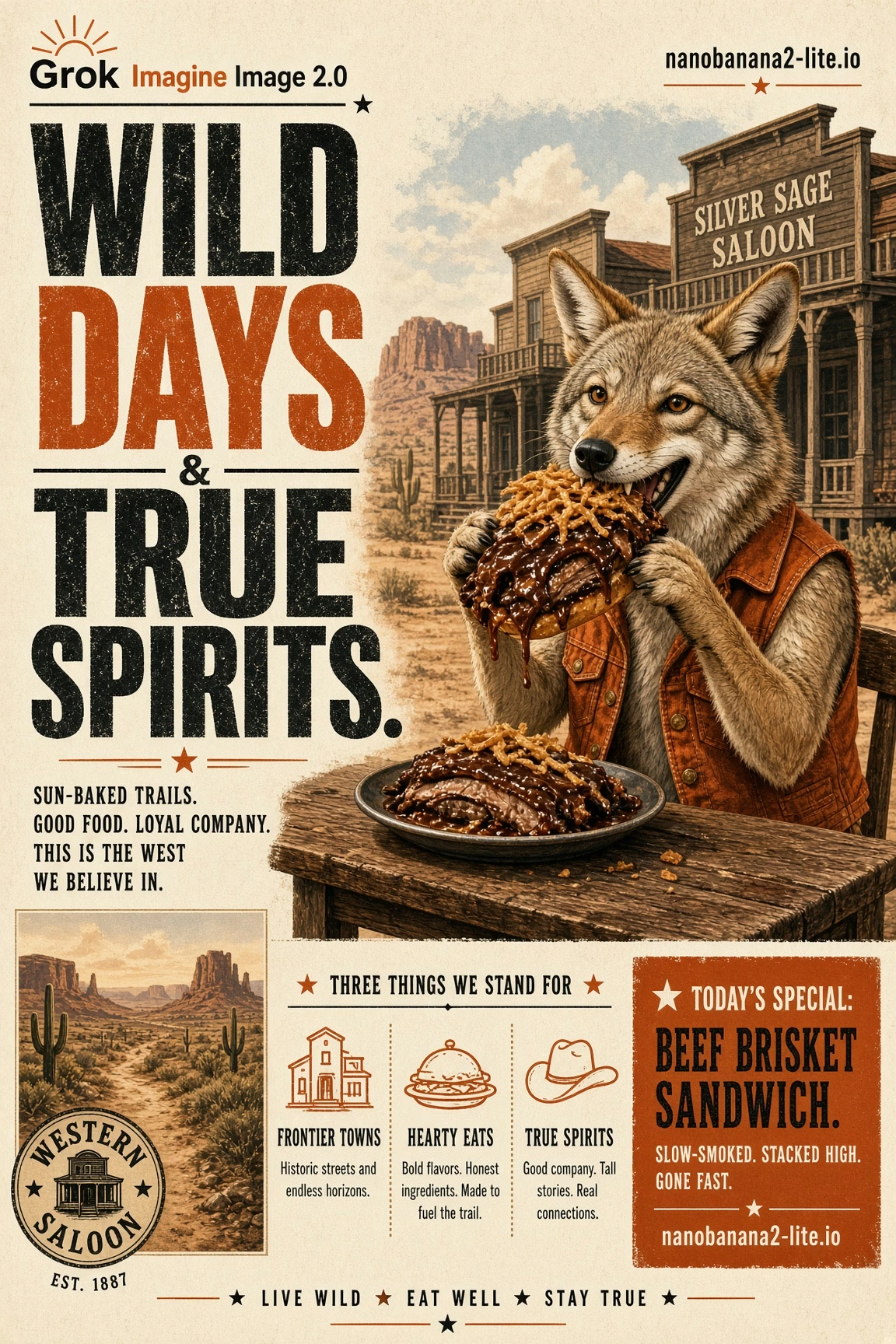
Choose the format that matches your layout
Select the canvas shape that matches the space where the image will be used. Check each destination's current publishing requirements separately.
Available aspect ratios
Wide format for banners, video thumbnails, presentations, and horizontal campaigns.
Balanced landscape format for websites, editorial layouts, and general horizontal images.
Equal width and height for social posts, product cards, and visual grids.
Portrait format with extra vertical space for editorial and mobile layouts.
Tall format for stories, short-form content, and full-screen mobile placements.
From one creative to multiple placements
Choose a canvas shape based on where your image will appear.
Landscape
Give wide spaces room to breathe. Use landscape formats for website hero banners, YouTube graphics, presentations, desktop ads, and campaign headers.
Square
Keep a balanced composition for social feeds, product grids, app cards, campaign collections, and catalog previews.
Portrait
Create mobile-first compositions with more vertical space for stories, short-form content, mobile posts, and full-screen placements.
How Smart Resize works
Create multiple formats from one image in four simple steps.
Upload your image
Start with one clear JPG, PNG, or WebP image up to 30 MB.
Select your formats
Choose one or more aspect ratios for the placements you have in mind.
Let AI rebuild the composition
Smart Resize generates a new composition around the uploaded image for each canvas shape.
Review and download
Compare the results, check important details, and download the versions you want to use.
Smart Resize is more than cropping
Traditional cropping removes pixels to fit a frame. Smart Resize generates a new composition for the target format.
Swipe horizontally to view the full table.
| Capability | Traditional crop | AI Smart Resize |
|---|---|---|
Subject visibility | May cut off the main subject when the frame changes. | Attempts to keep the important subject visible in the new canvas. |
New canvas area | Uses only pixels already inside the original frame. | Can generate additional surrounding content to fit the format. |
Pixel-level predictability | Produces a predictable crop of the original pixels. | Creates newly generated content that may change details. |
Multiple formats | Requires manual crops and repeated composition decisions. | Generates separate versions for selected aspect ratios. |
Final review | Check that the crop did not remove important content. | Check faces, text, logos, products, and generated background details. |
Review the result before you publish
Smart Resize generates new content, so important details may change during the process. Treat every result as a creative version that needs a final check.
People and faces
Check facial features, hands, pose, and the edges around the original subject.
Products and proportions
Confirm that the product shape, packaging, labels, and small details still look correct.
Text and brand marks
Inspect logos, numbers, typography, and any text that appears in the source or generated scene.
Message and rights
Make sure the composition still supports your message and that you have the rights to publish the source and generated content.
Create every format from one image
Upload your image once, choose the layouts you need, and generate new versions for the places your content appears.
Smart Resize FAQ
Answers to help you choose a format and use generated results with confidence.