Grok Imagine Image 2.0 AI Image Generator
Create a new image from a detailed prompt, or upload an original image and describe what you want to change. Keep your visual direction, update the parts that need work, and create images for the format you need.
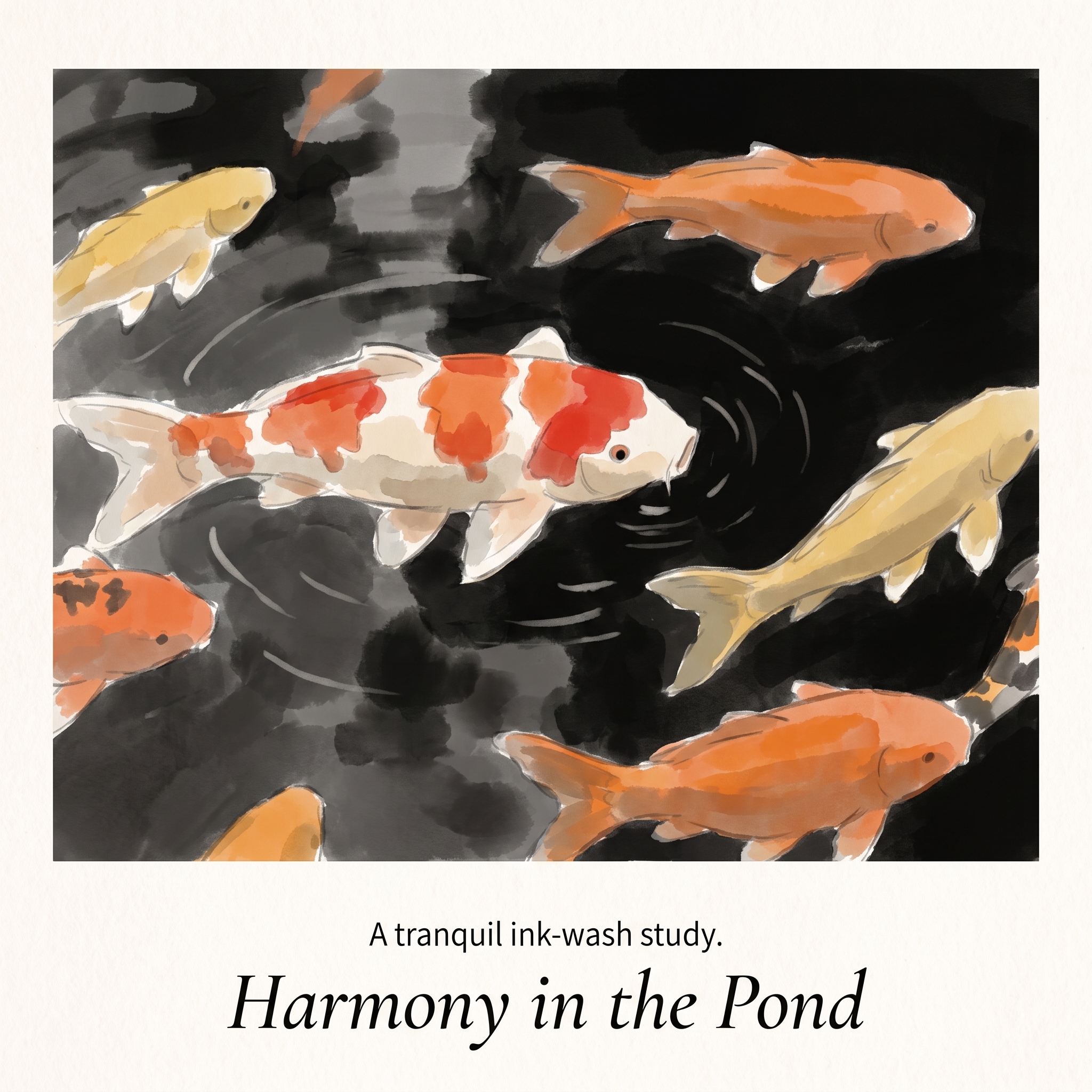
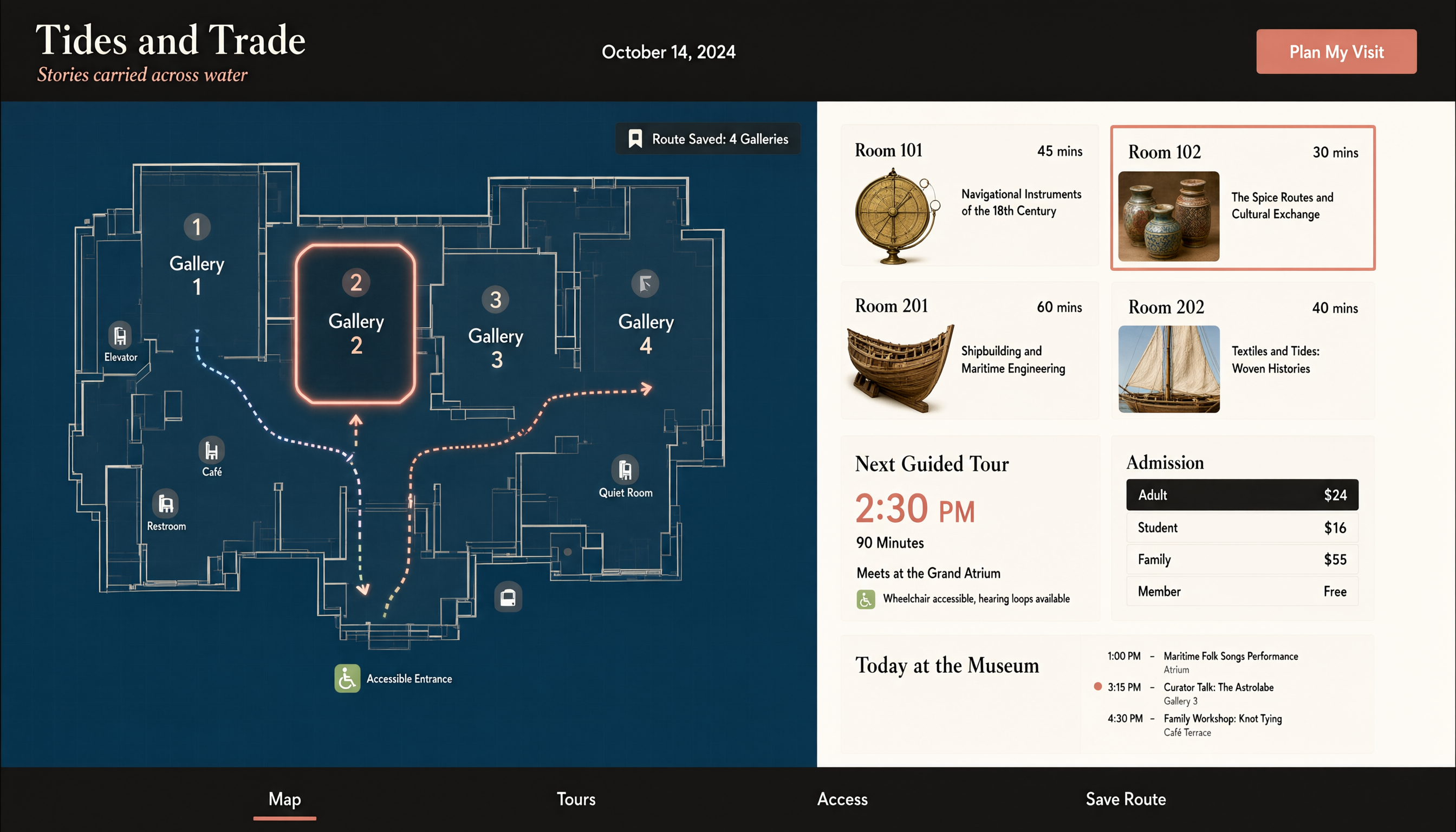
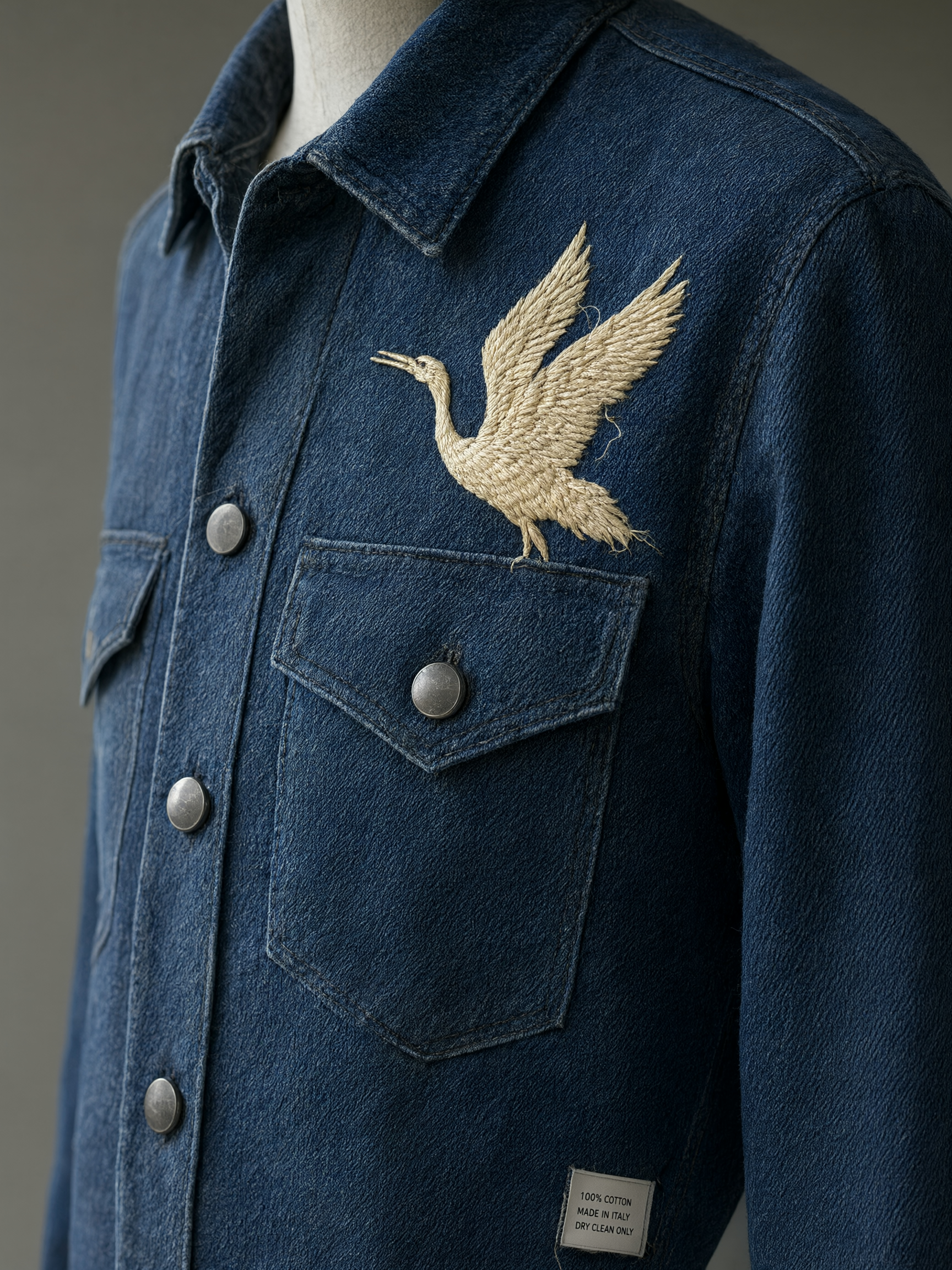
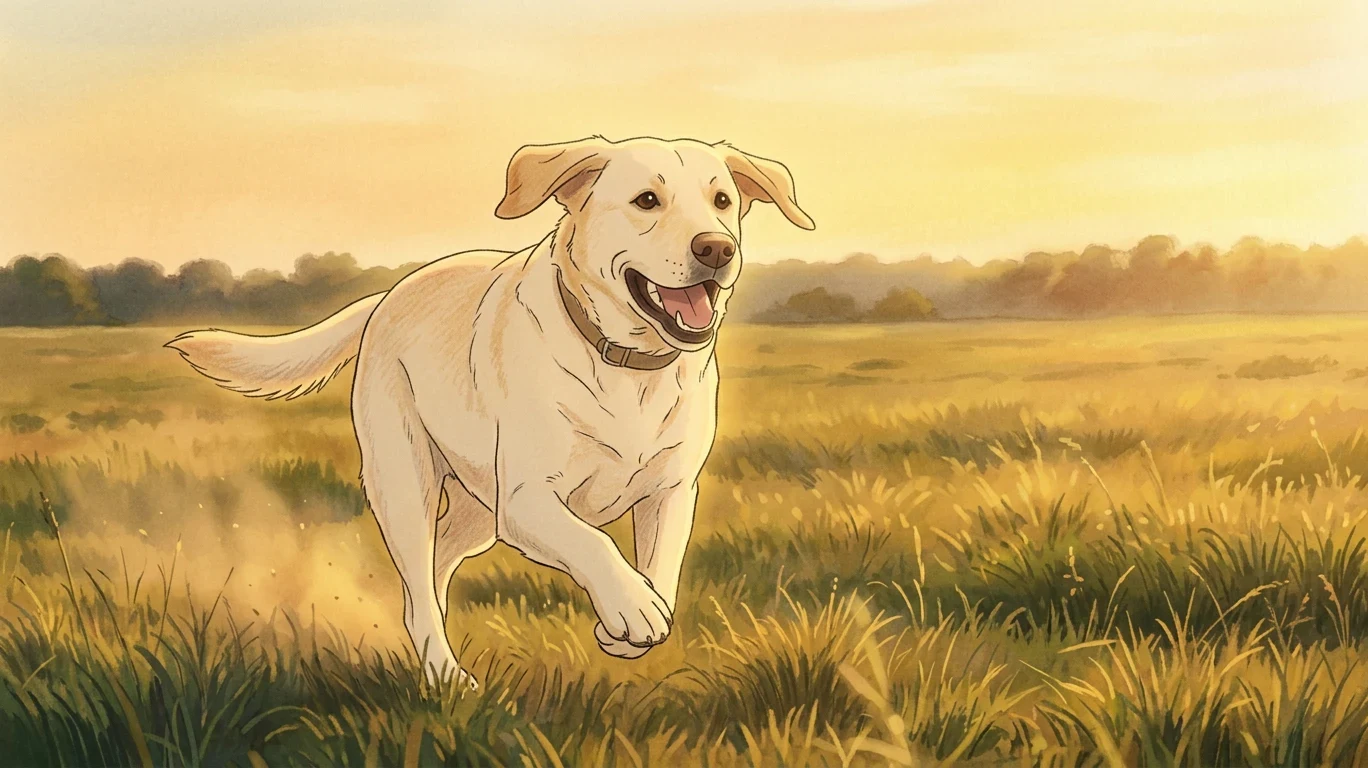
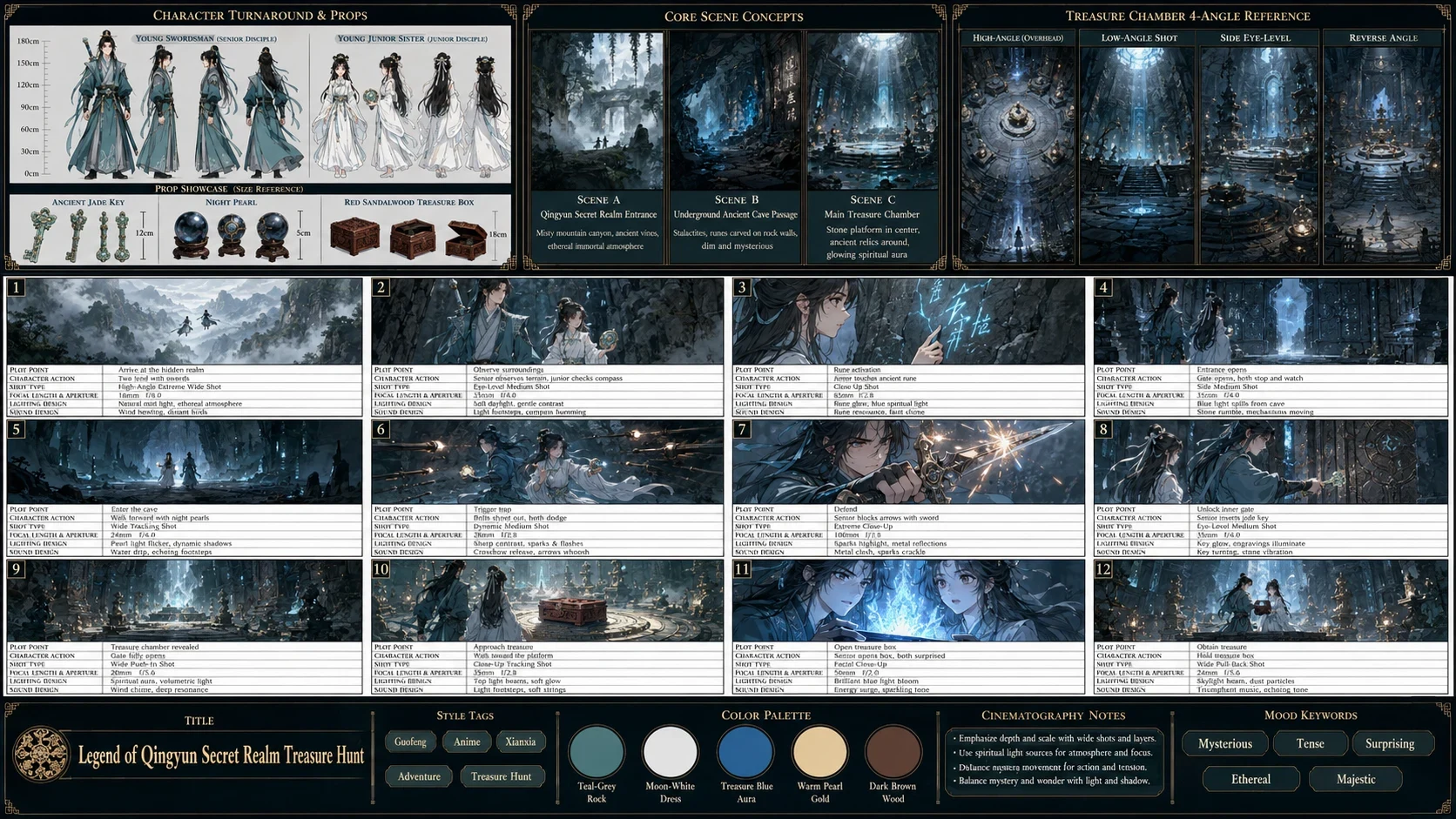
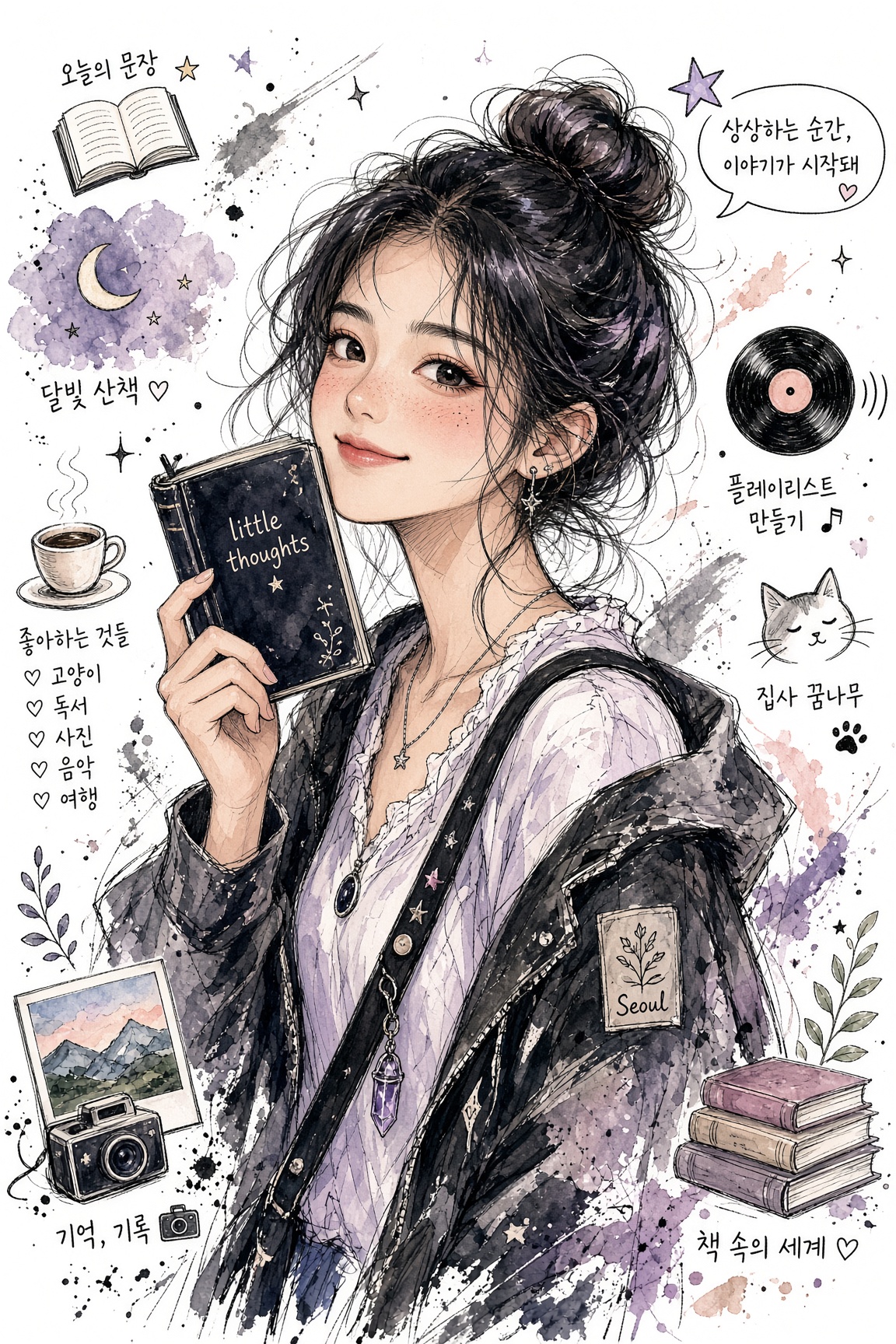
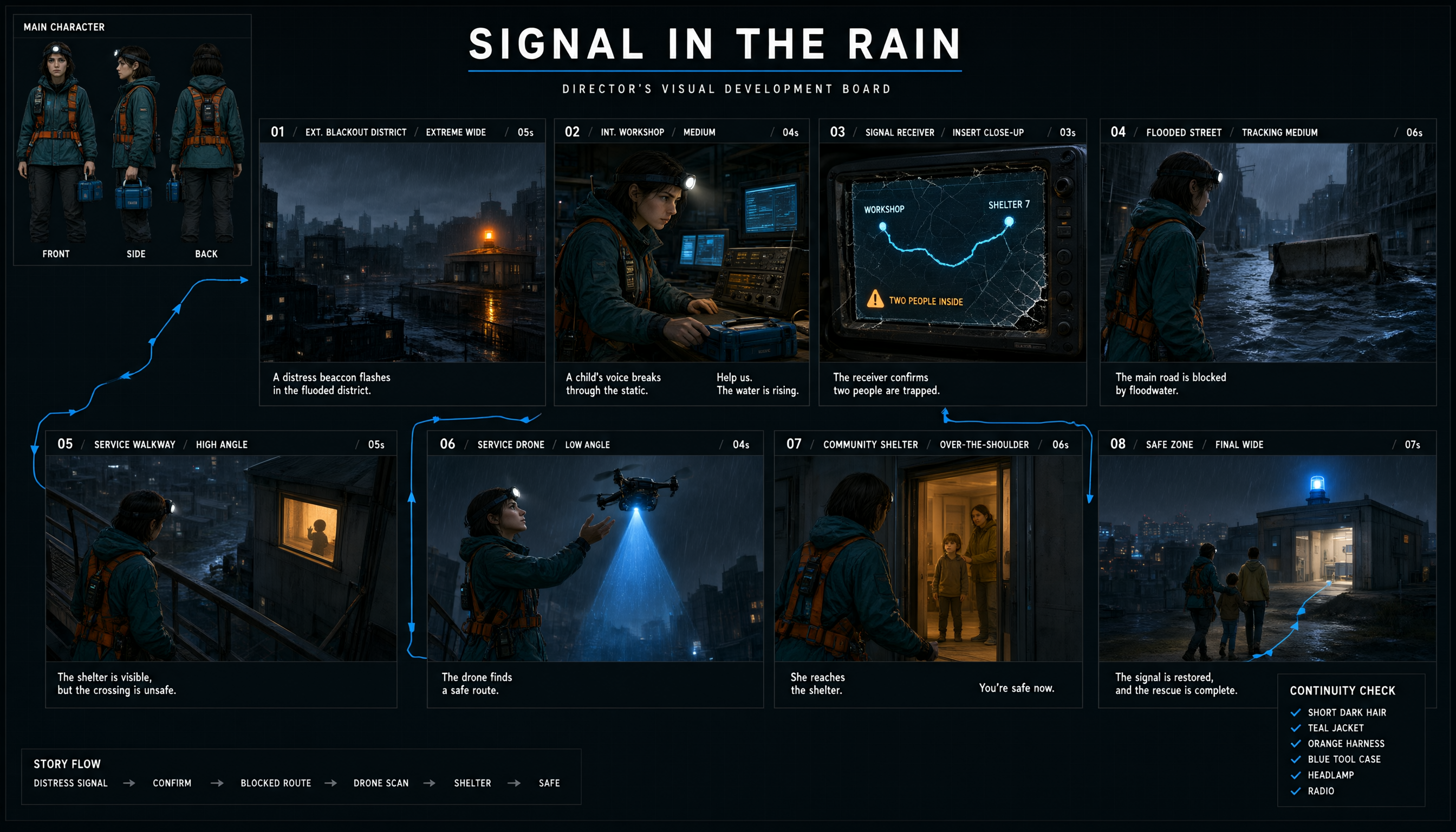
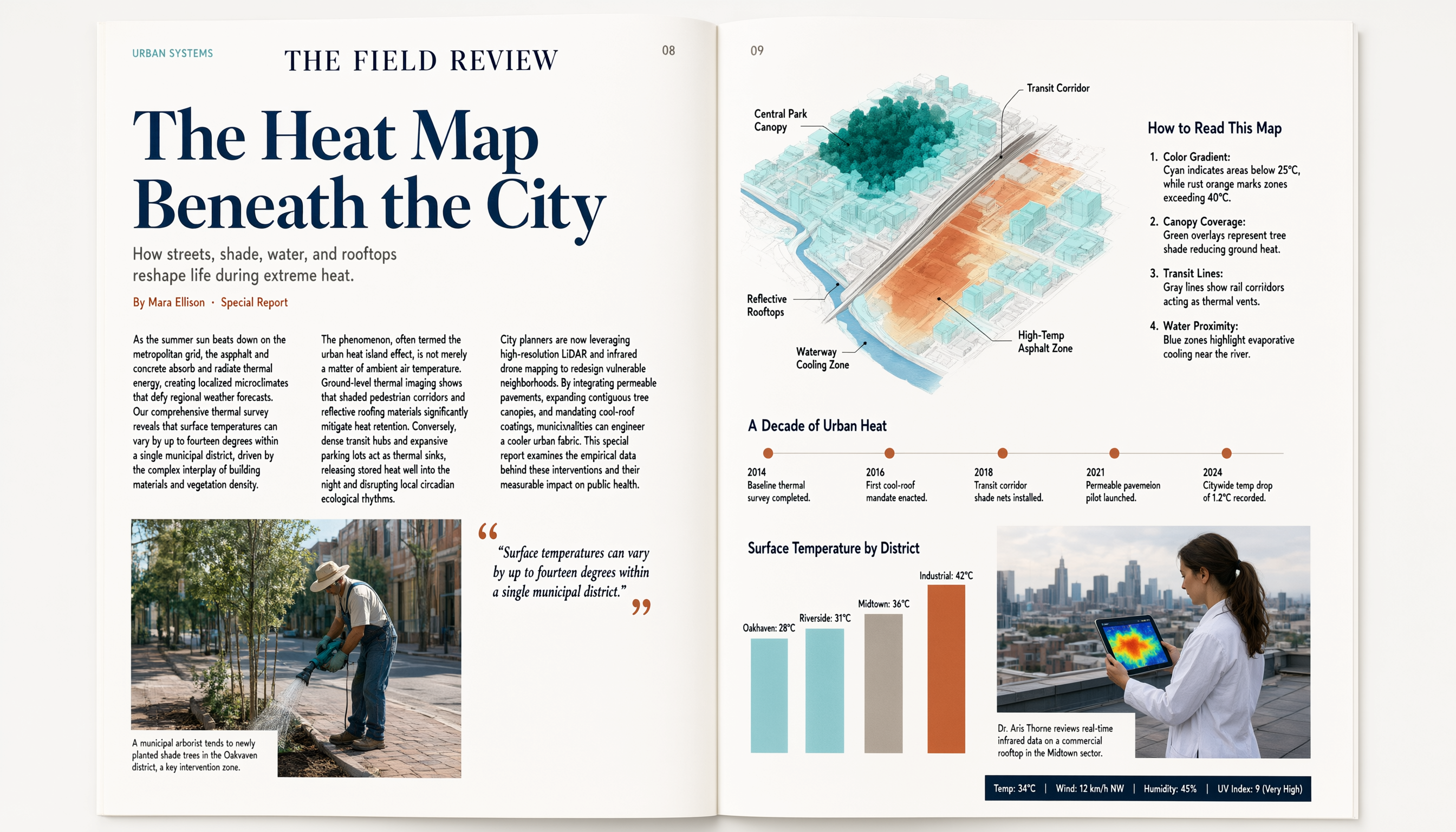
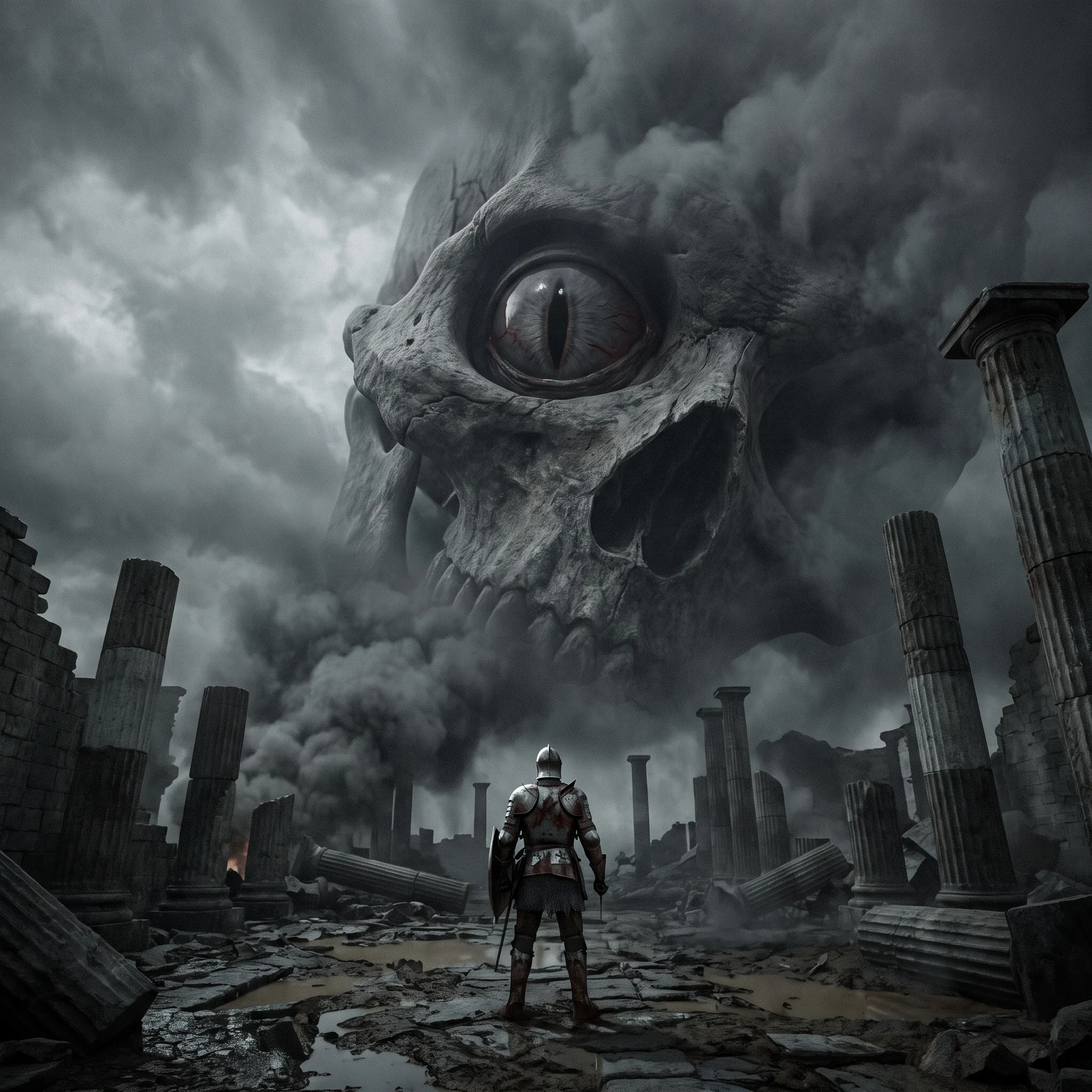
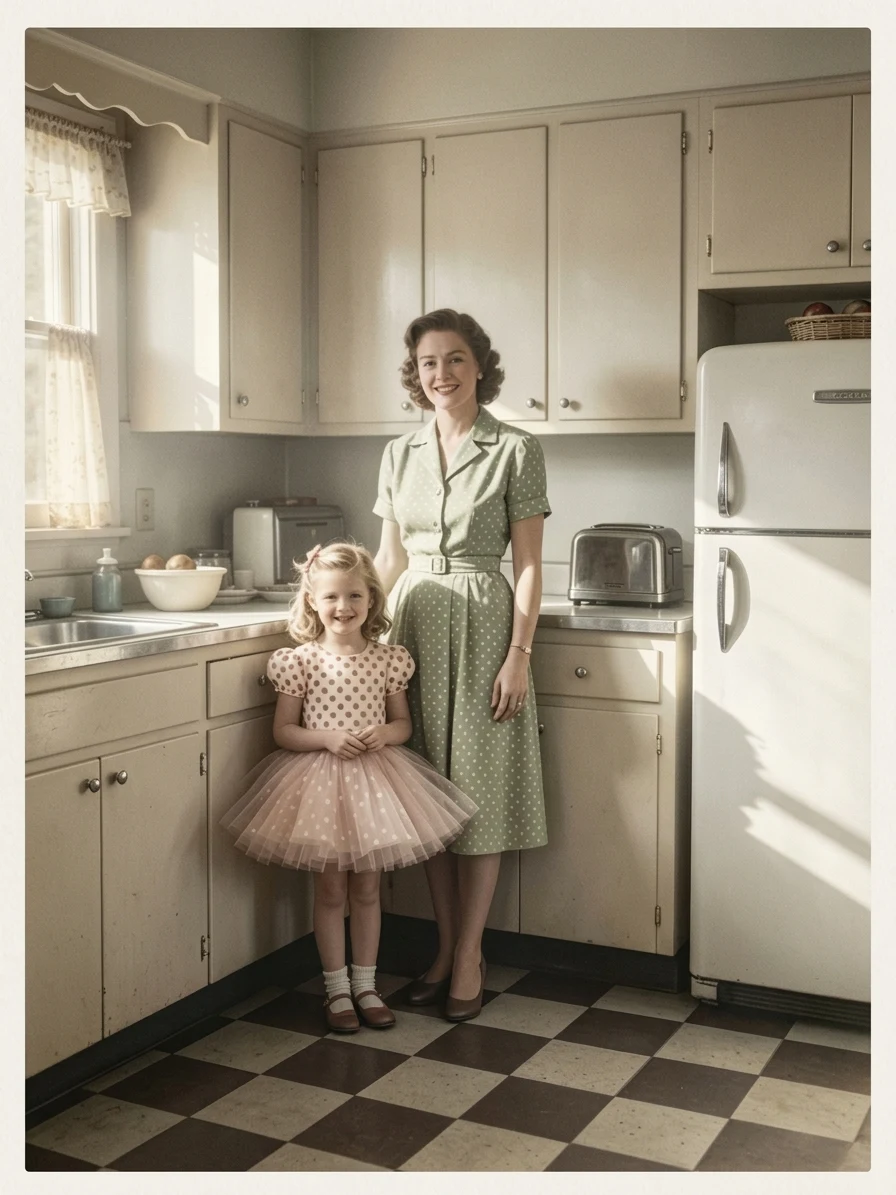
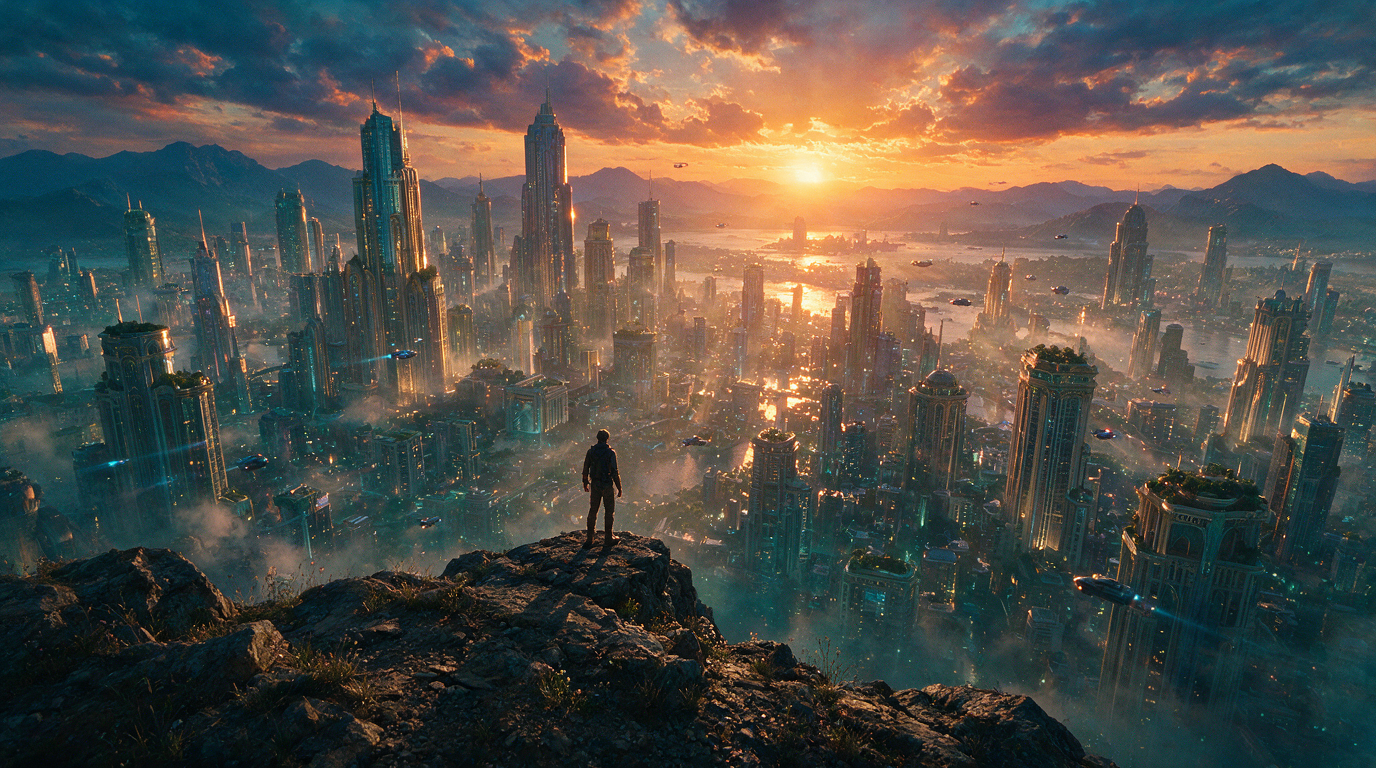
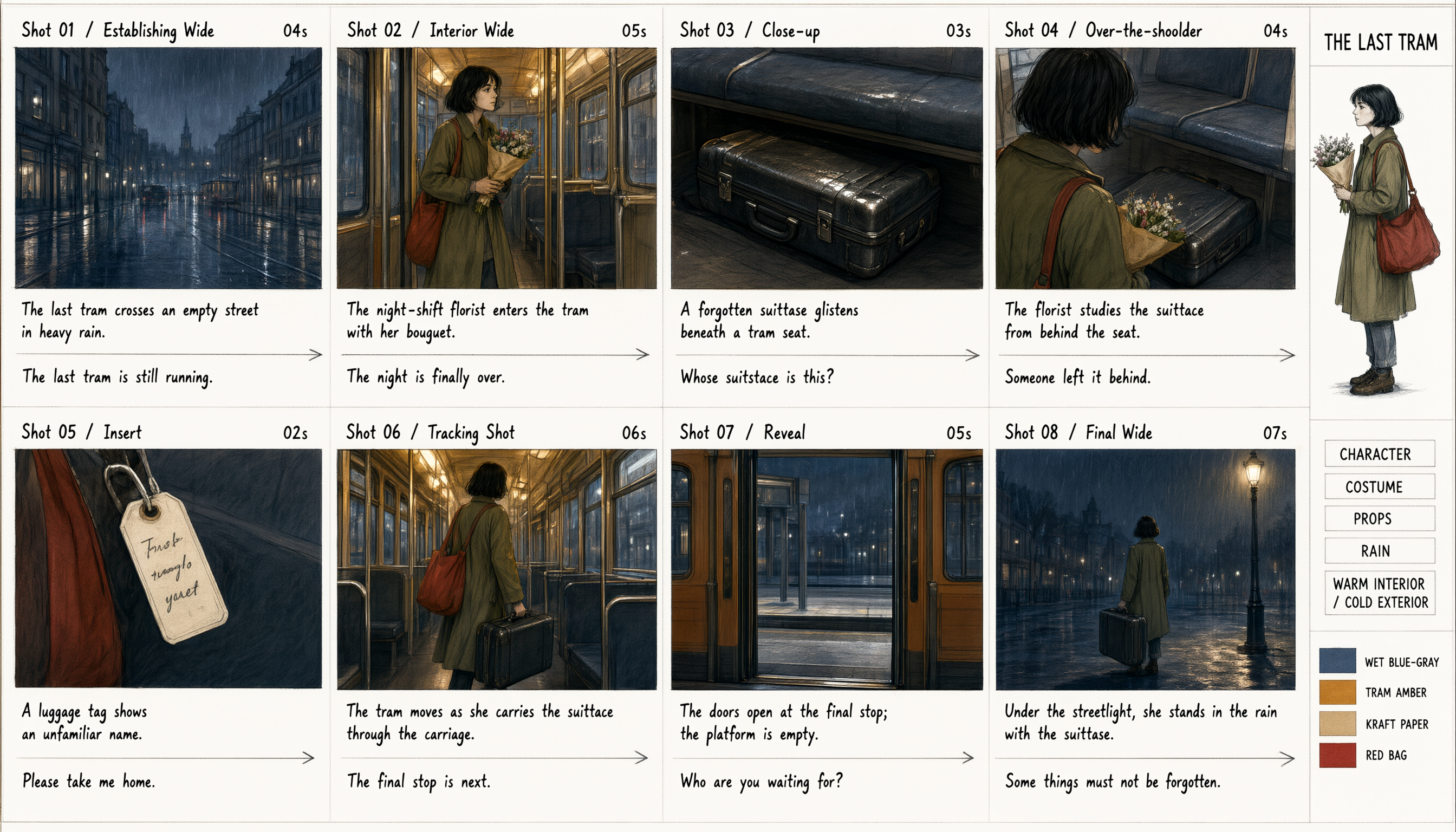
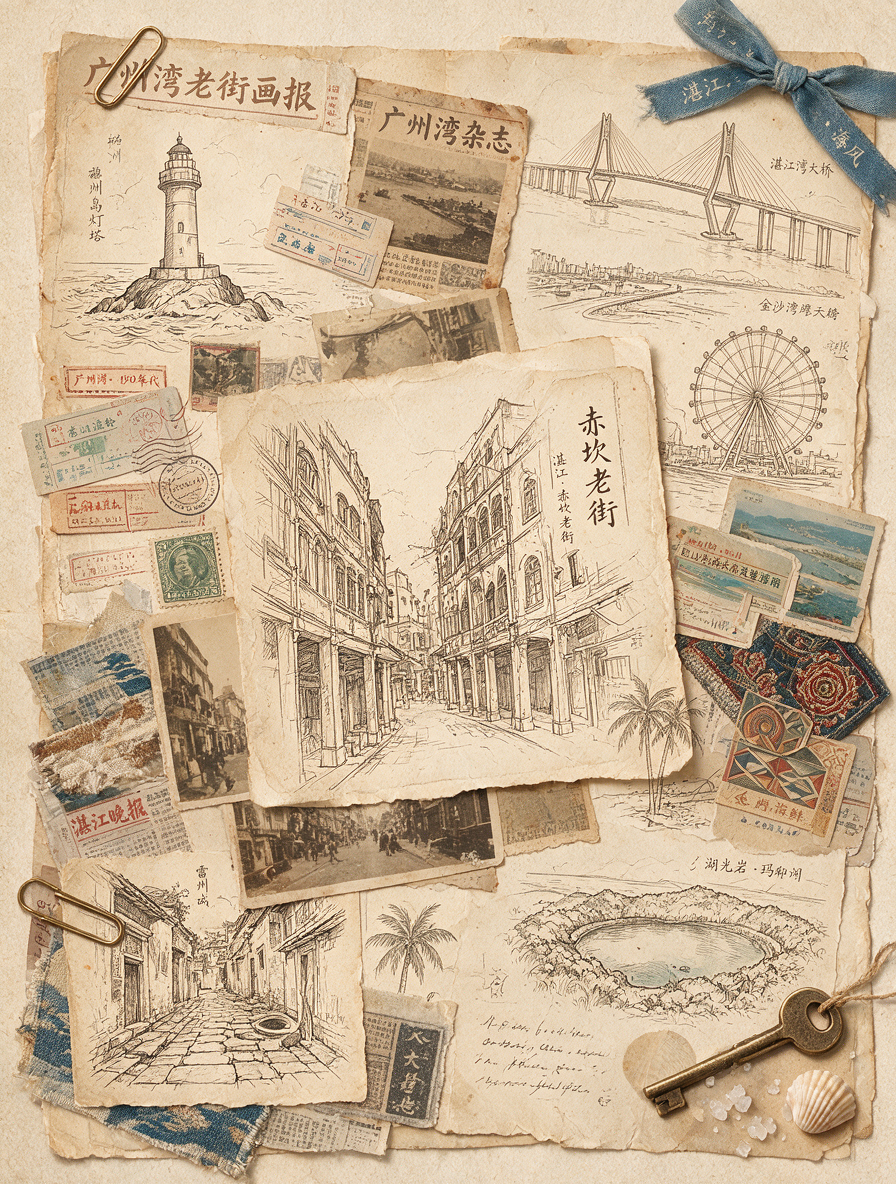
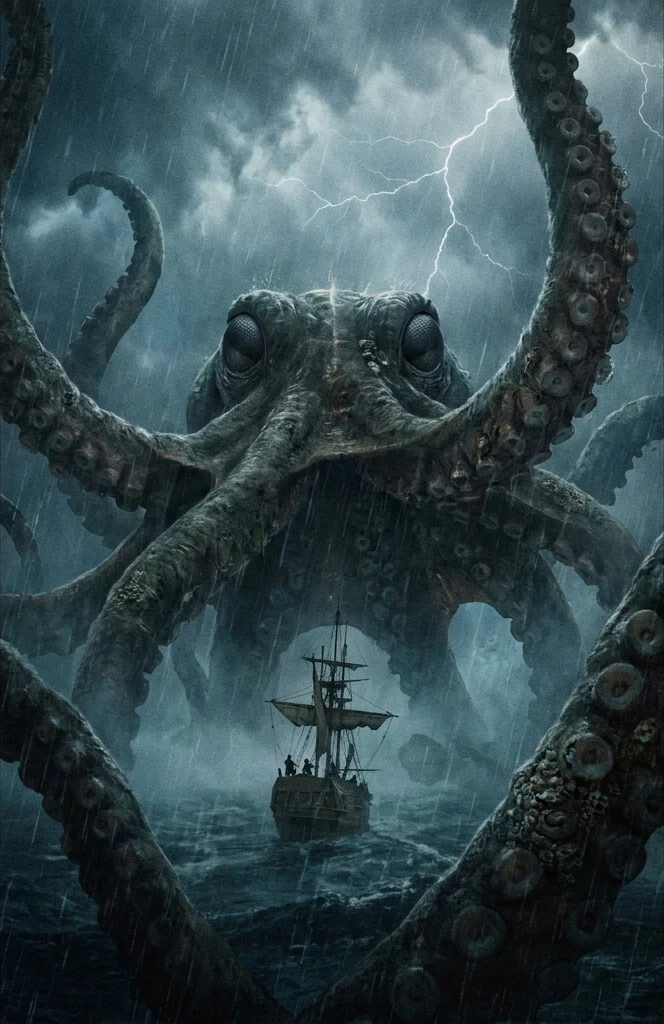
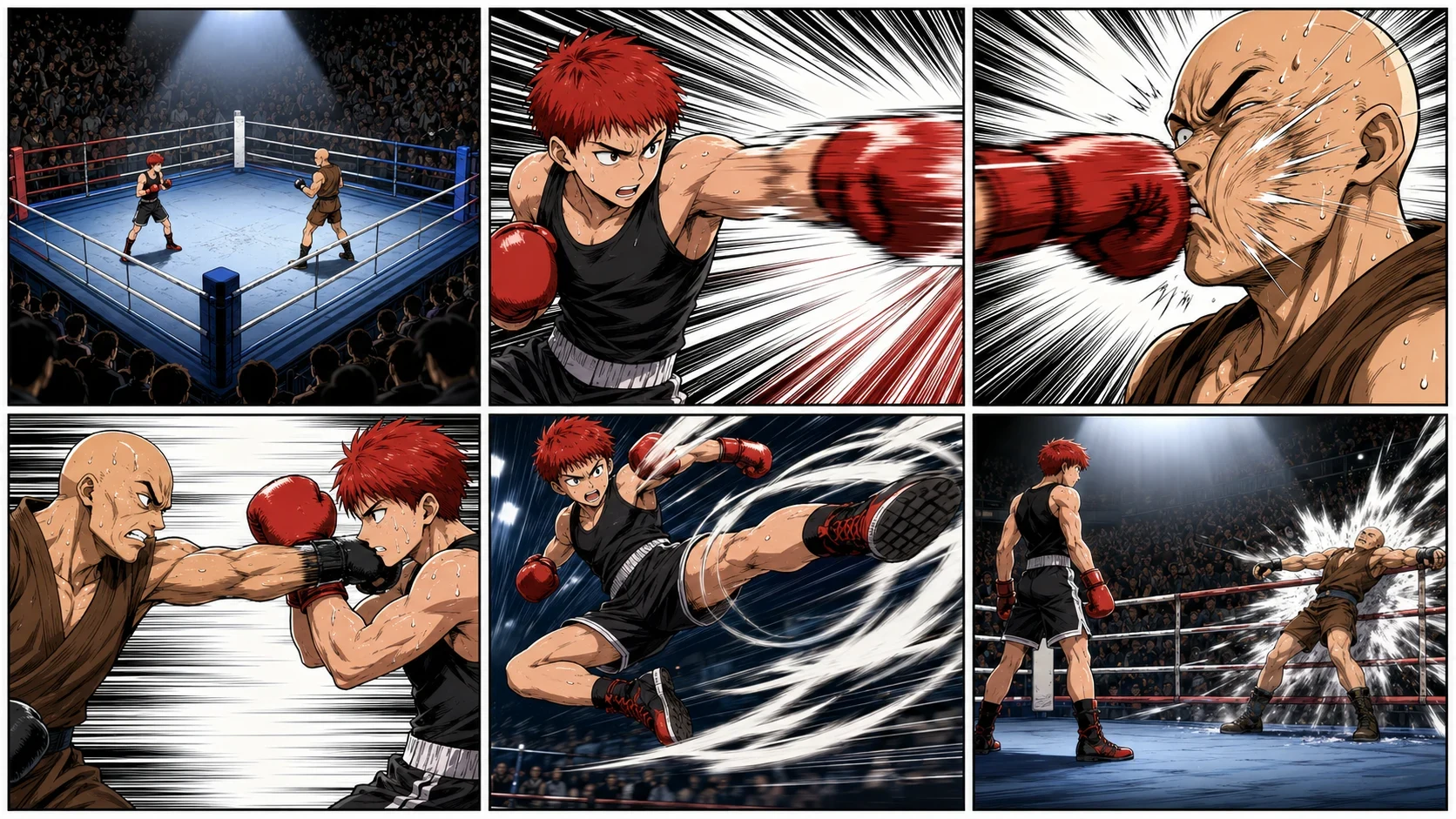
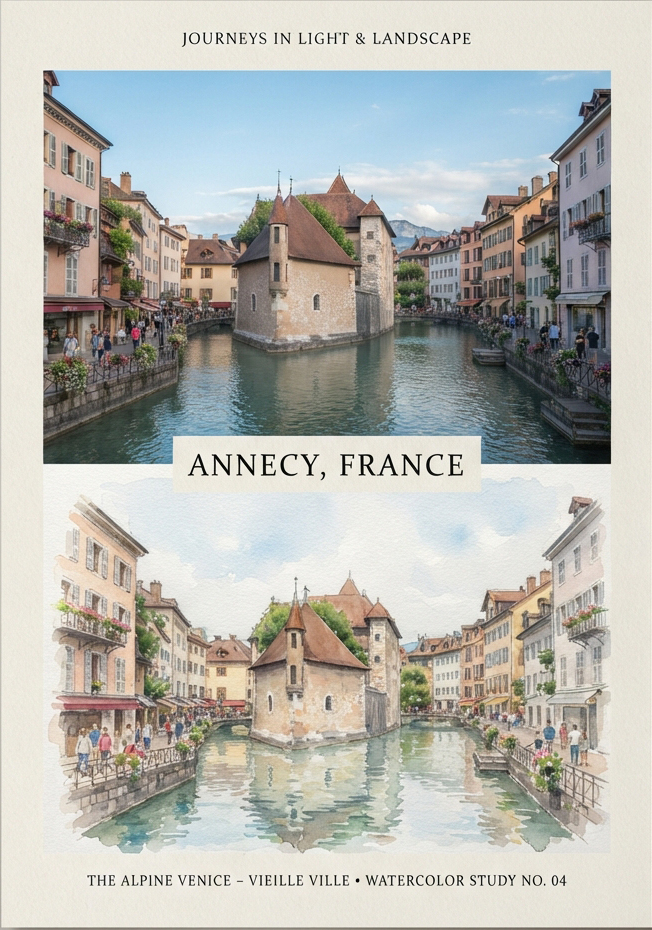
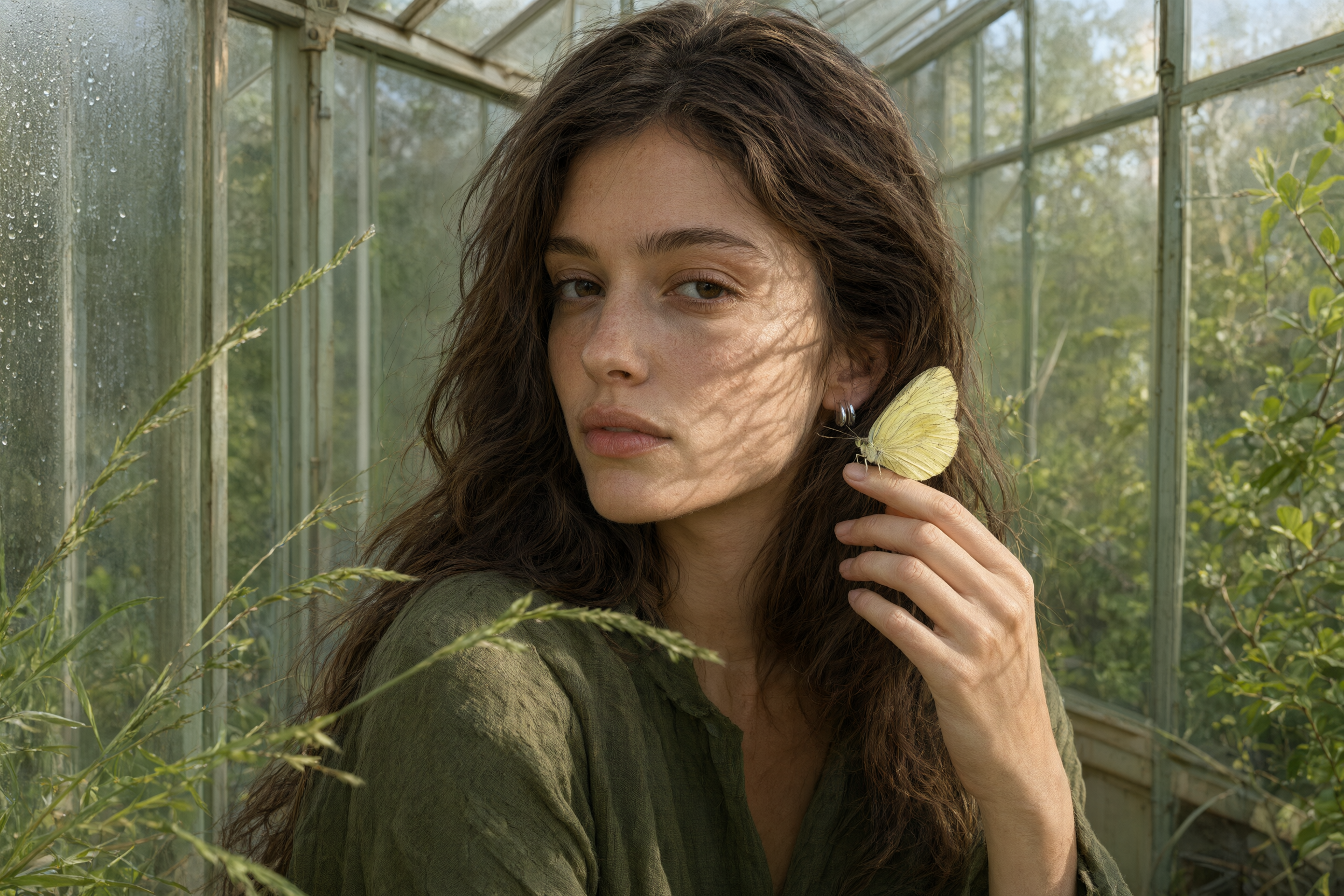
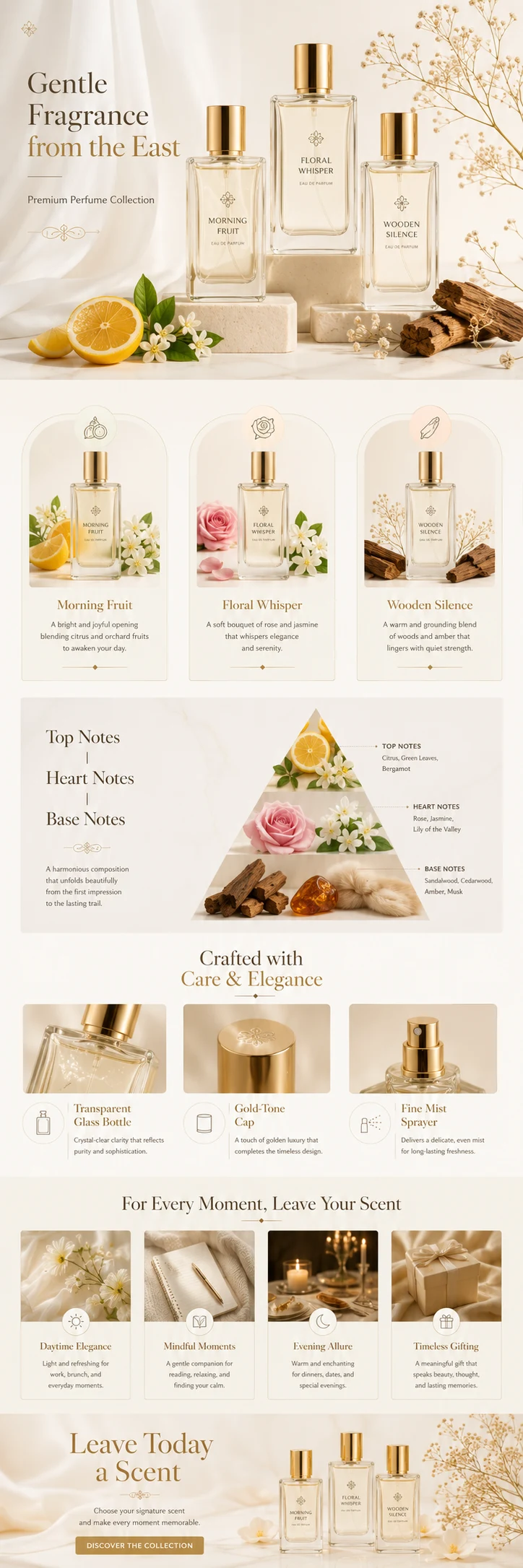
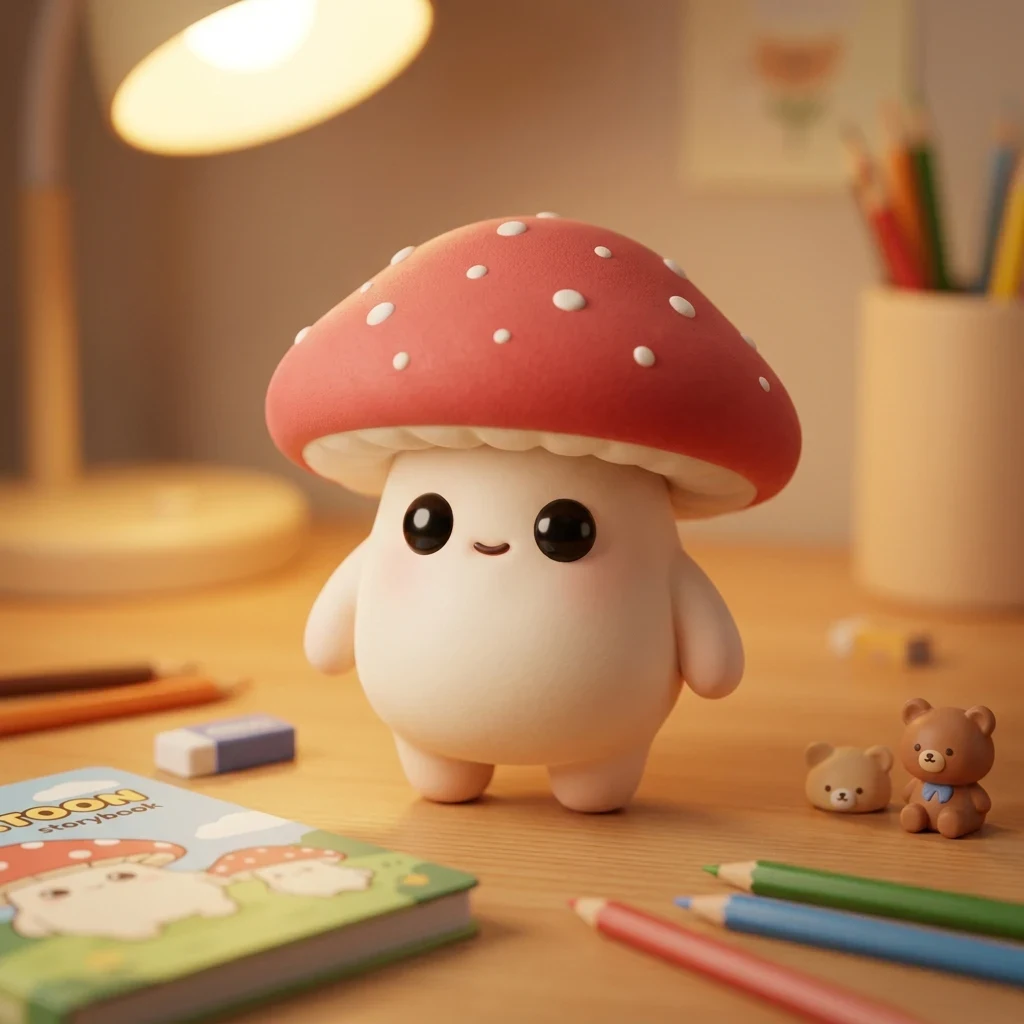
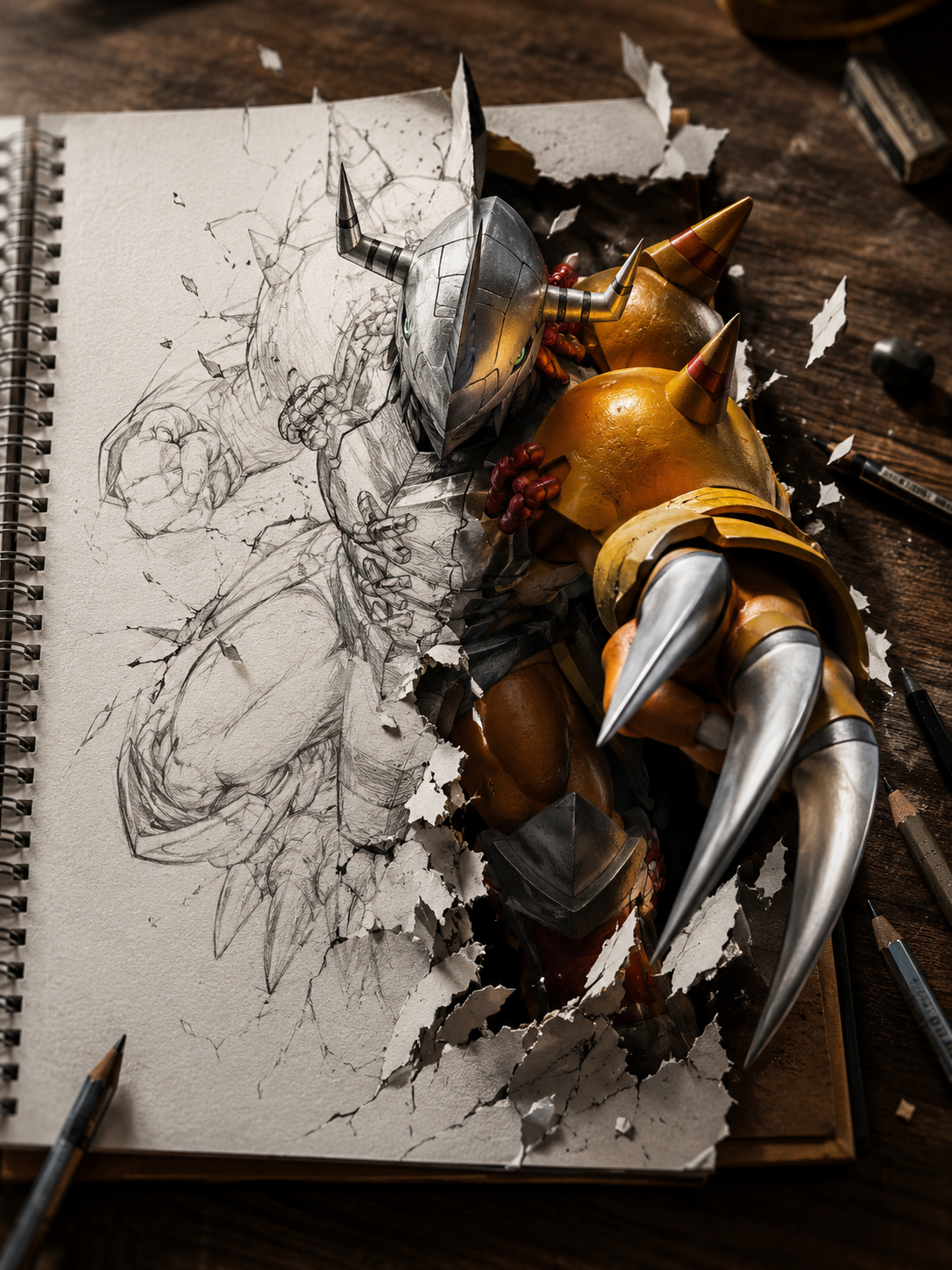
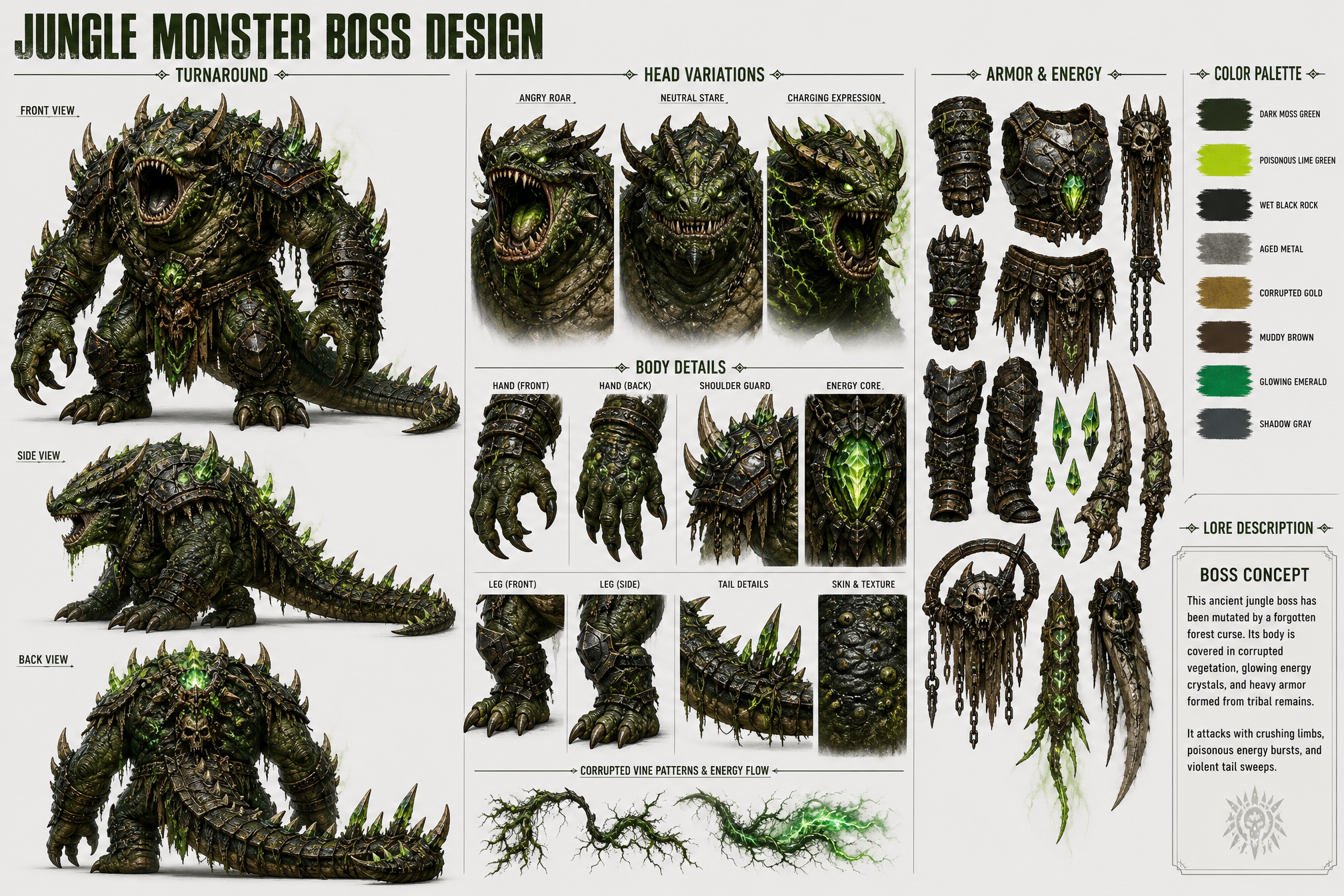
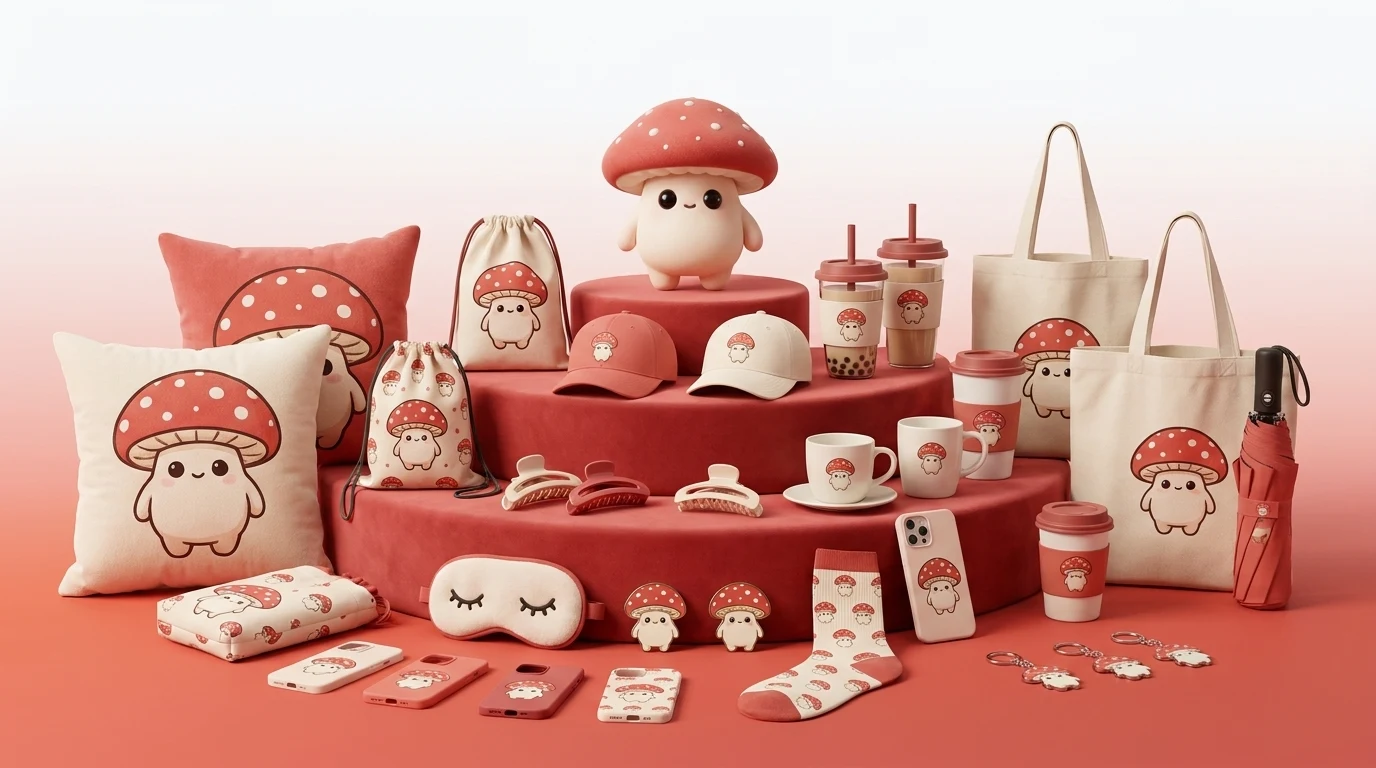
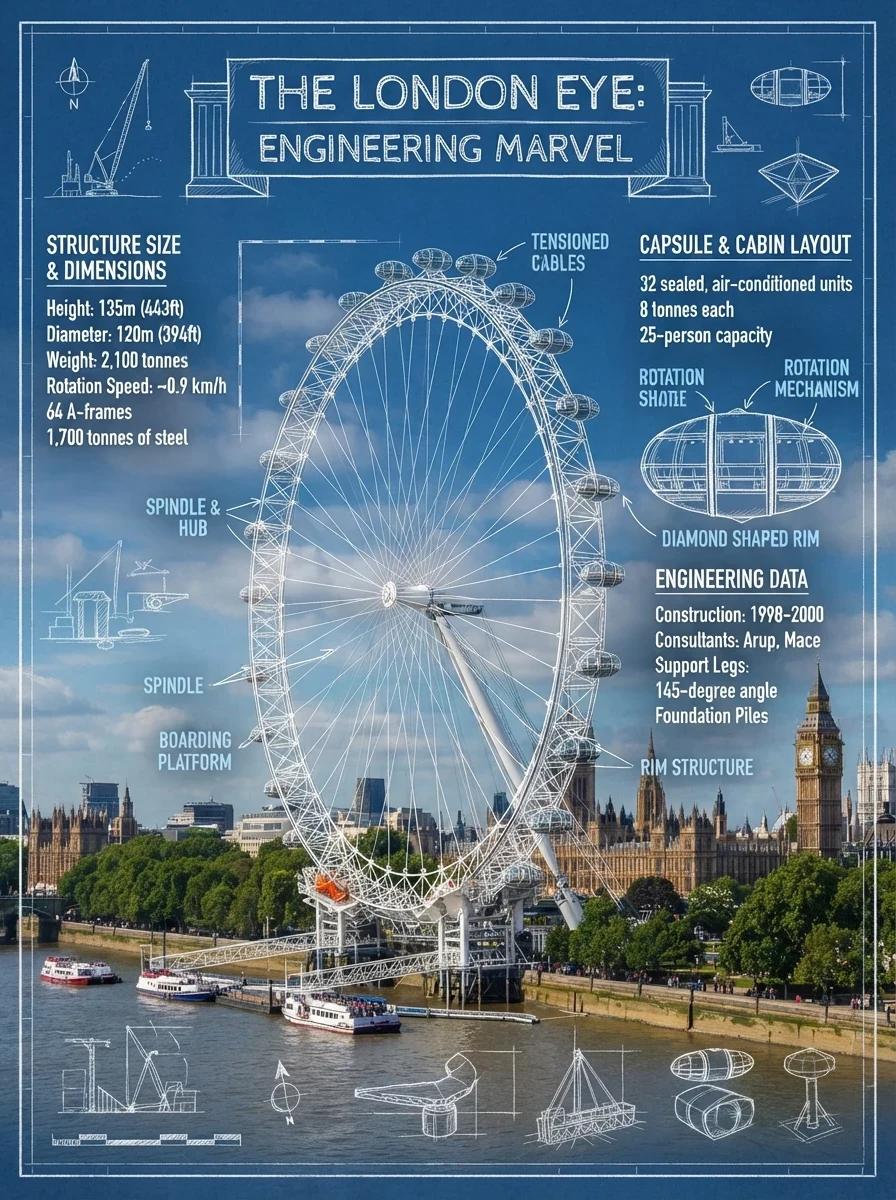
A visual model built for precise, connected revisions
Grok Imagine Image 2.0 goes beyond one-off generation: it can follow a visual direction, edit what you already have, and carry a coherent idea through multiple finished images.
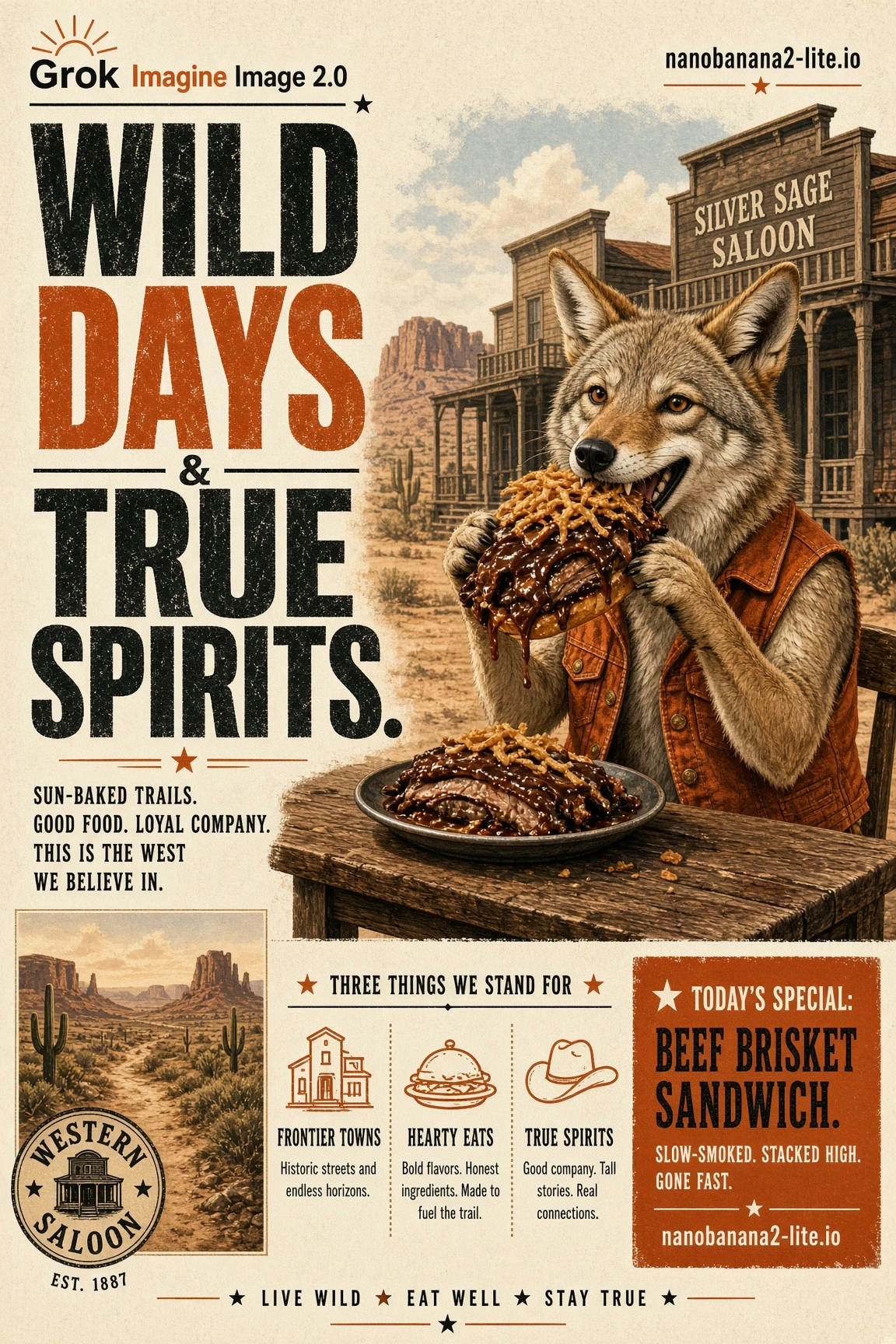
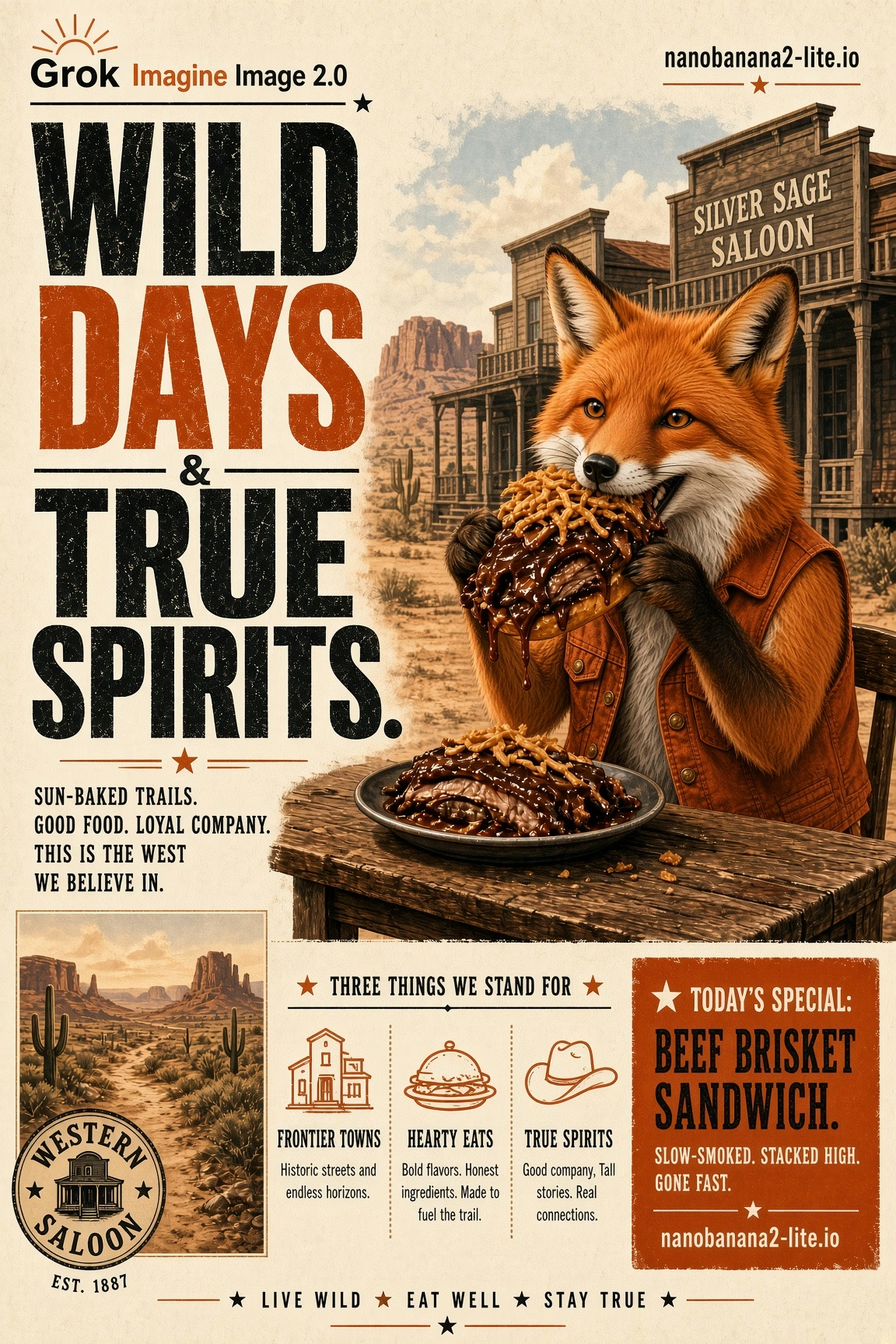
Edit the image you already have
Start from an original image and describe the change in natural language. Replace a background, adjust an outfit, remove an object, or move the subject into a new scene while preserving the visual direction that already works.
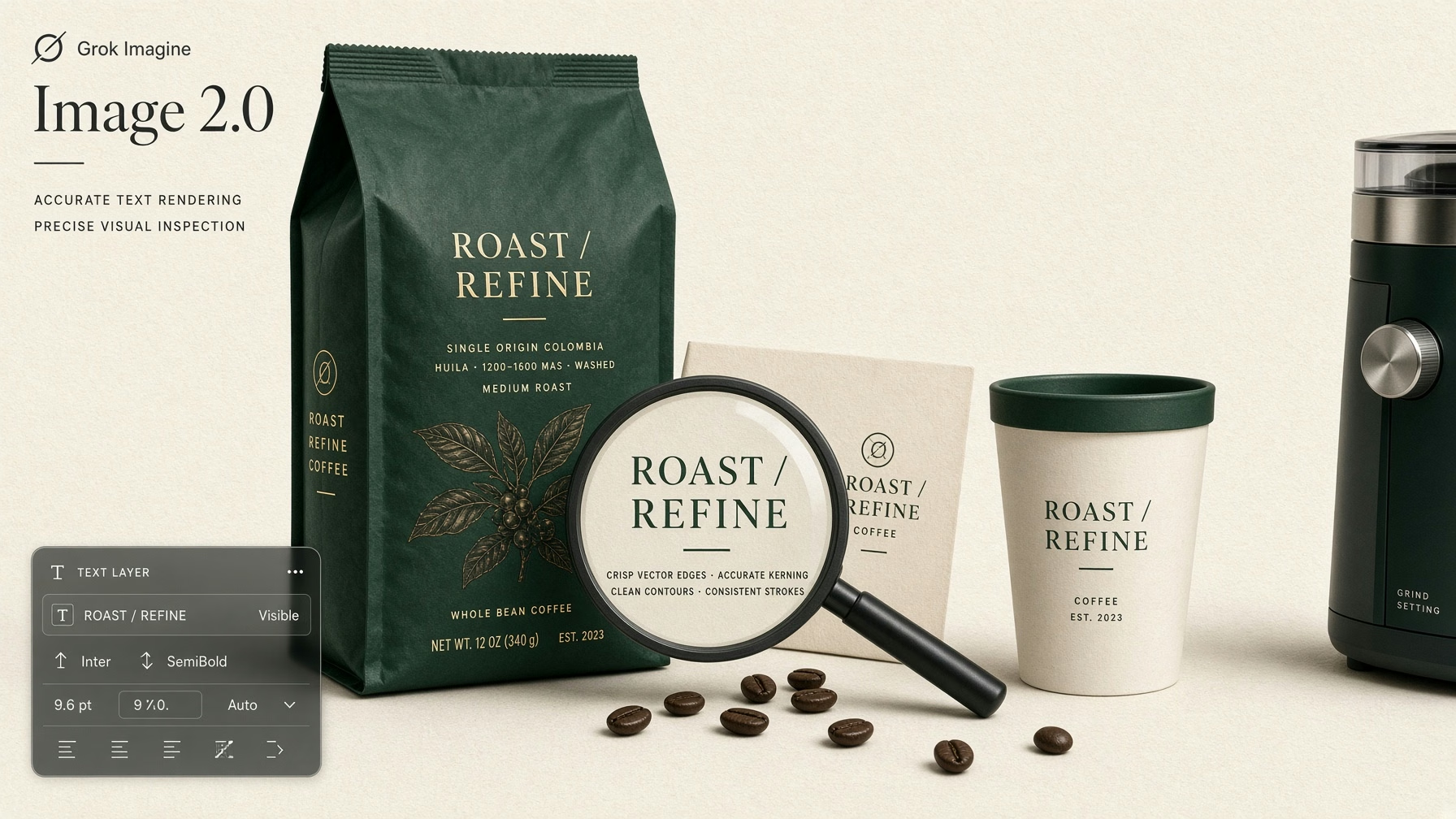
Sharper Typography Comes with Imagine Image 2.0
Posters, infographics, editorial graphics, illustrated guides, and other text-rich visuals benefit from improved typography and more structured layout planning. Imagine Image 2.0 handles written elements as part of the overall composition, helping headlines, supporting text, imagery, and surrounding design elements work together with greater visual clarity.
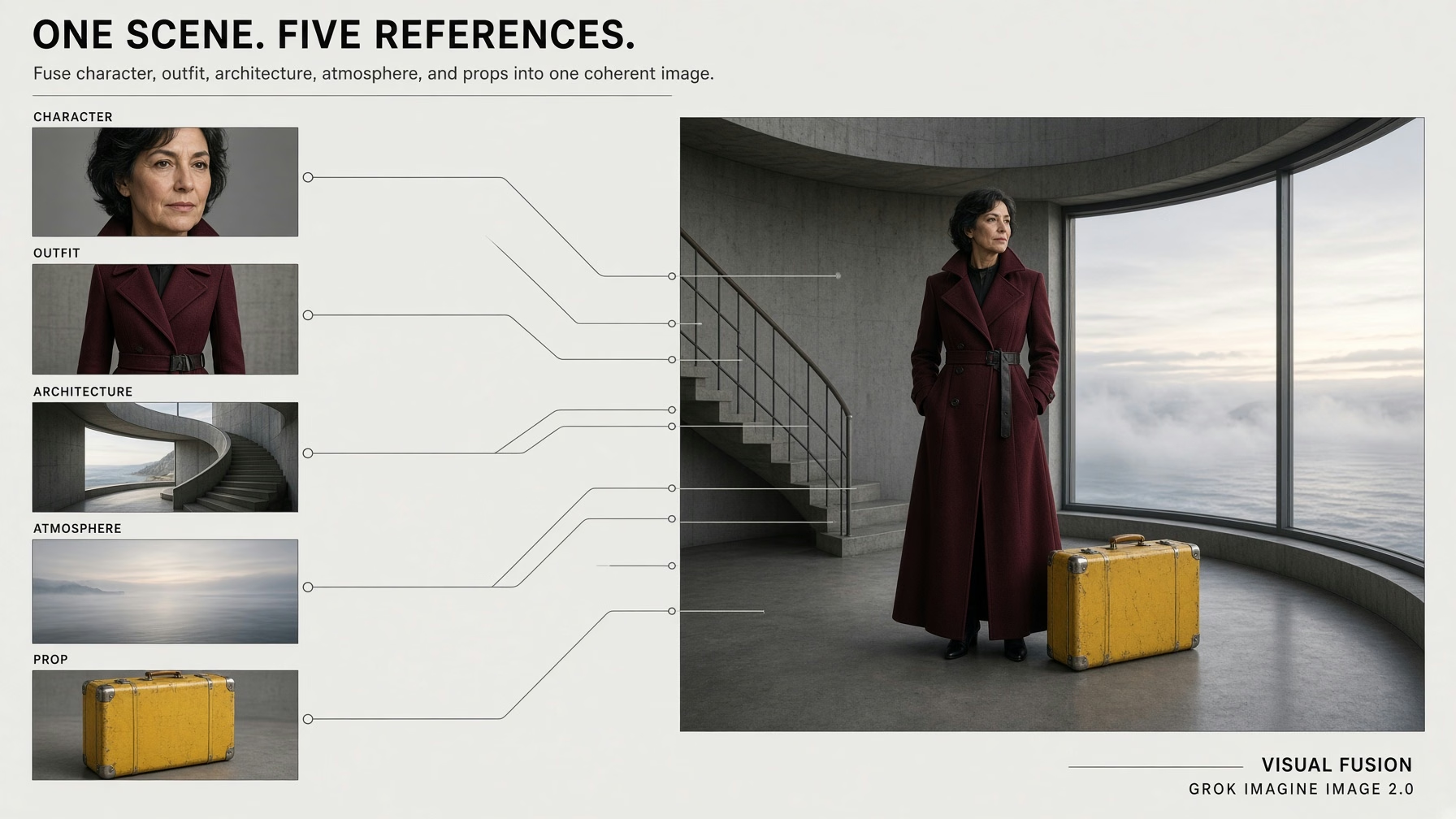
Combine references into one visual world
Use multiple reference images for a character, outfit, object, setting, or color direction, then bring those ingredients together in one scene.
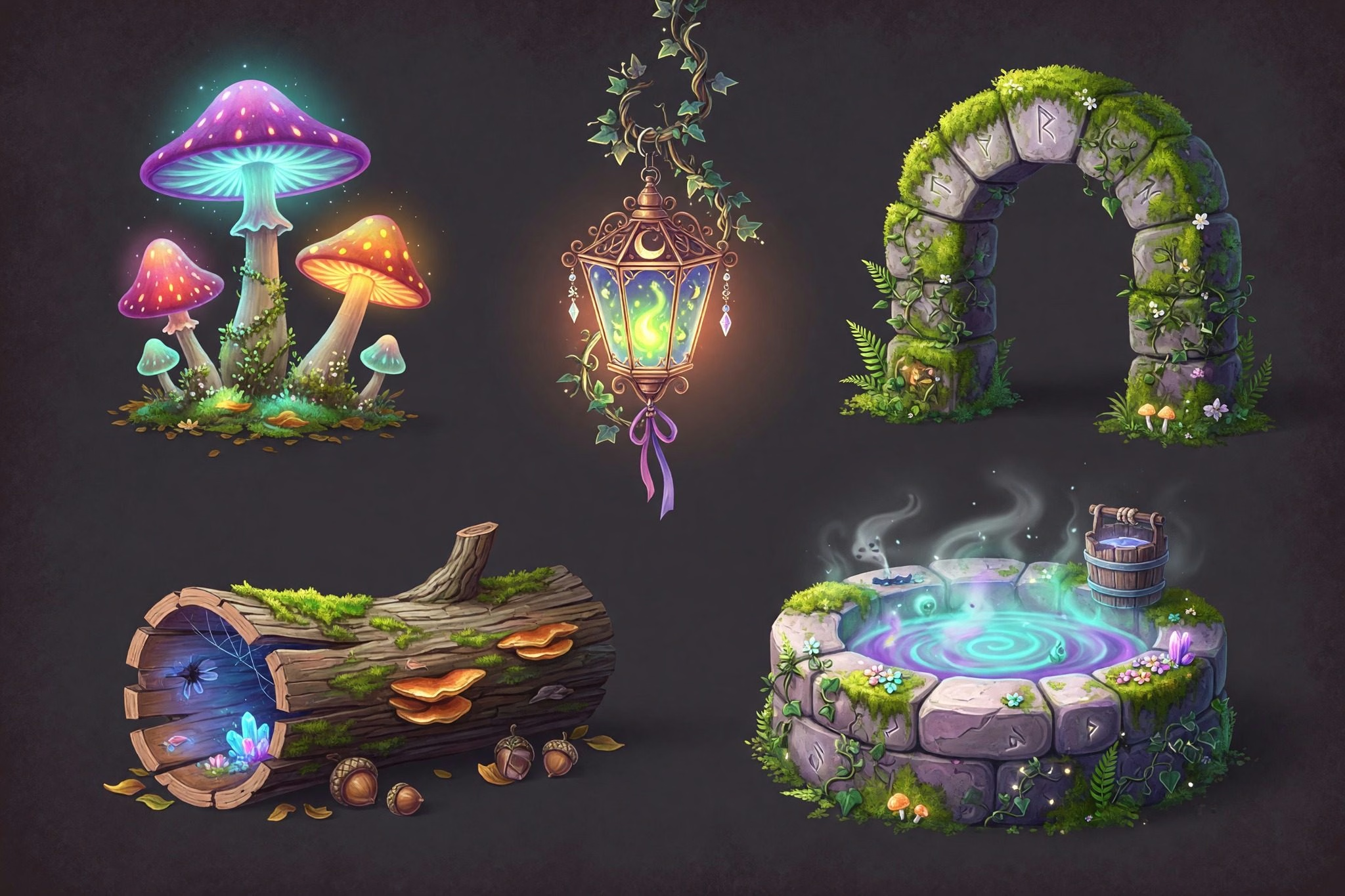
Props & UI Kit
Generate matching game props, item icons, buttons, and panels - one style contract, engine-ready.
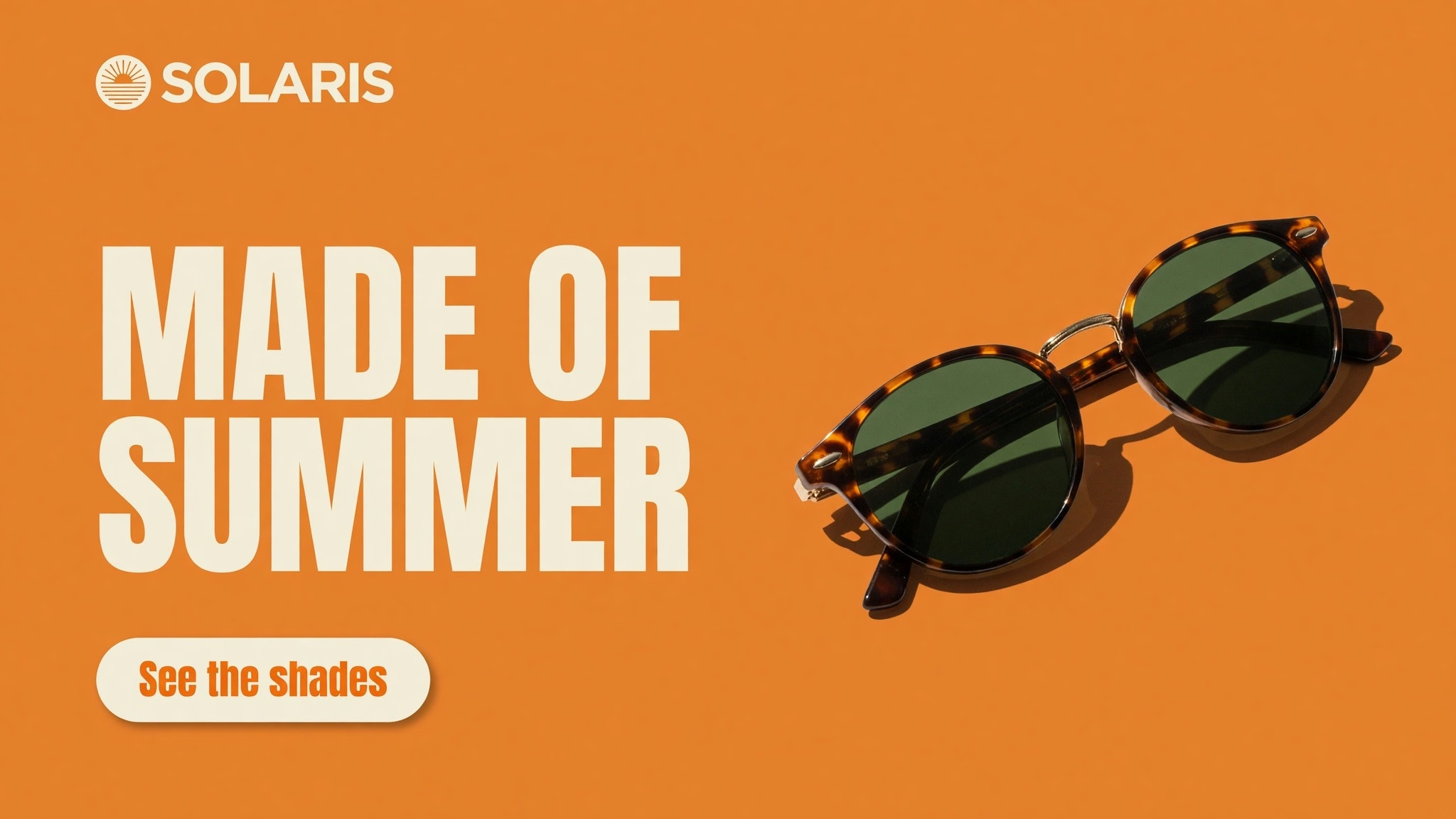
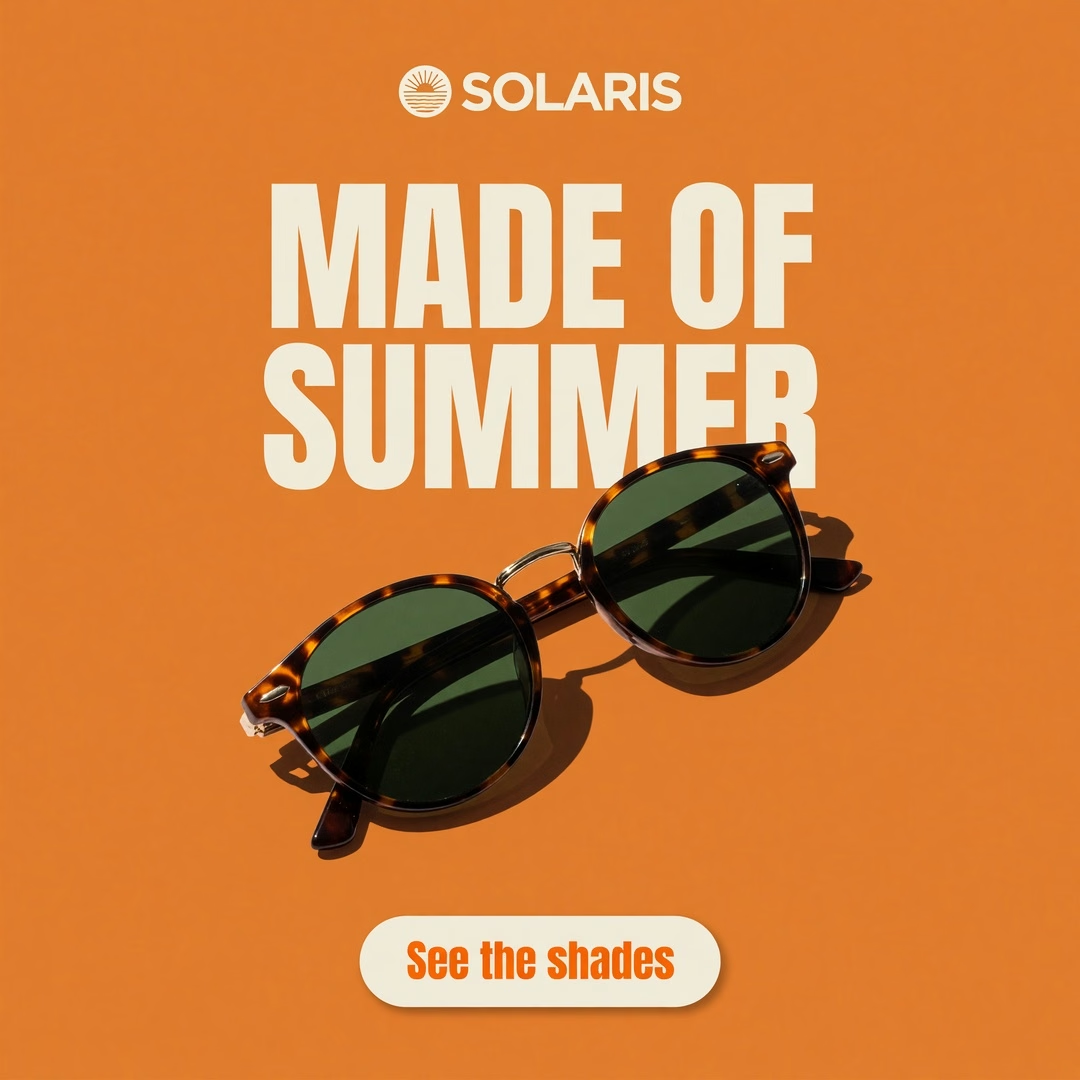
Adapt one idea to many formats
Use Smart Resize and flexible aspect ratios to move a visual direction between portrait, landscape, square, and wider layouts. The same subject and composition can be adapted for product pages, thumbnails, presentations, and campaign placements.
Available in this generator
Grok Imagine Image 2.0 settings
These are the input modes and limits currently exposed by this site for Grok Imagine Image 2.0.
Swipe horizontally to view the full table.
| Setting | Grok Imagine Image 2.0 |
|---|---|
Creation modes | Text-to-image and image edit Available |
Text-to-image aspect ratios | 1:1, 2:3, 3:2, 16:9, and 9:16 Available |
Image-edit aspect ratio | Auto, 1:1, 2:3, 3:2, 16:9, and 9:16 Available |
Reference images for editing | Up to 5 images Available |
Reference image size | Up to 30 MB per image Available |
Prompt length | Up to 5,000 characters Available |
Grok Imagine Image 2.0 use cases
Grok Imagine Image 2.0 use cases and prompt guide
Learn how to use text-to-image generation and image editing for product visuals, promotional designs, character scenes, and focused revisions.
Product image updates
Start with your original product image, then change the background, setting, lighting, or selected details. Create lifestyle versions, promotional compositions, and isolated assets without replacing the product with an unrelated object.
Posters and promotional layouts
Create a visual with a headline, offer, label, or campaign message included in the composition. Explore several text and layout directions, then verify the wording and spacing before publishing.
Consistent character scenes
Use the same character brief, appearance details, outfit, and references to explore story scenes, comic panels, educational content, or a recurring campaign identity across multiple images.
Local corrections and batch exploration
Focus an edit on a selected area, such as one object or background region, and use batch workflows to compare alternative compositions, colors, settings, or campaign directions before refining a final candidate.
Keep what works. Change what does not.
Start with a prompt, or upload your original image and explain what should stay and what should change.
Grok Imagine Image 2.0 FAQ
Learn how to use Grok Imagine Image 2.0 for text generation, original-image editing, focused revisions, and visual production workflows.